
HOWTO Move ZEC Out of Sprout: The Comprehensive Guide (Ironwood Era, September 2026)
"It's time to get out of the sprout pool." — Zaki Manian, pointing to the tool at Argos.sovright.com. Argos recovers funds right on your computer (secrets are never sent anywhere) from old secret phrases,
wallet.datfiles and standalone Sapling/Sprout keys: it looks through the blockchain from its earliest days and moves what it finds to a modern Zcash address.
This guide explains in plain words how to move ZEC out of the old shielded pool Sprout into the current pool Ironwood. Inside: why it matters, preparation, the recommended step-by-step path using Argos, fallback options for advanced users, an honest look at privacy and security, troubleshooting, and FAQ.
Status at time of writing (14 September 2026): Ironwood (network upgrade NU6.3) is live since block 3,428,143 (~28 July 2026). The old zcashd software stopped on 18 July 2026 (block 3,417,100) and can no longer catch up with today's network. Use Argos version 1.1.0 or newer (latest seen: 1.2.0, 31 August 2026).
0. Short version
- Find your Sprout backup. A
zc...address, awallet.datfile, or anSK...Sprout key. ⚠️ The 24 secret words of ZecWallet Lite alone are not enough for Sprout (those keys were once created separately from the phrase) — you need the wallet file or a standalone key. - Prepare a modern receiving wallet. Install an Ironwood Ready wallet (e.g. ZODL on your phone), write down its new secret phrase, copy the Unified Address (starts with
u1...). - Download Argos (a free desktop program that passed an independent security review) from argos.sovright.com → the Releases page on GitHub. Verify the file is genuine (see §6.1). Version must be 1.1.0 or higher.
- Open the file or key in Argos, scan the network, and move the money. Sprout funds land in Sapling first (the network rules require it). A from-scratch Sprout scan reads ~26 GB of old blocks and runs for hours — but you can interrupt it: it resumes where it stopped.
- Let the new wallet finish the second step on its own (Sapling → Ironwood). Reopen the app from time to time until the move finishes; don't spend the whole balance mid-move.
- Once everything is confirmed — retire the old backup.
1. Why move now
- Sprout is the first Zcash shielded pool (2016). A pool is like a separate compartment in the blockchain with its own accounting. Later came Sapling (2018), Orchard (2022), and now Ironwood (July 2026). Money never moves between compartments by itself — you start each crossing.
- A hole was found in Sprout that could theoretically have allowed undetectable counterfeiting (found March 2018, closed by the Sapling release in October, disclosed publicly in February 2019). Nearly eight years later ~25,409 ZEC still sits in Sprout — the incident post-mortem called it "possibly abandoned or lost" (see the migration tracker). Don't add yours to it.
- A similar hole was found in Orchard (found 29 May 2026 by the Shielded Labs team, fixed 3 June 2026) — which is why Ironwood exists: the same Orchard protocol, but with a mathematical proof of correctness and fresh reviews, plus a "turnstile" so anyone can verify there is no extra money in circulation.
- Your money is safe; there's no rush. The Orchard hole was found by security researchers themselves, disclosed responsibly, and fixed with a coordinated network upgrade in early June (tagged NU6.2). There is no evidence the hole was ever exploited, no evidence user funds were affected or the total coin count changed; the privacy of money in no pool was harmed, and Orchard kept working normally after the fix. Migrate when the wallet first prompts you — but there's no need to panic or hurry.
- Only coins in Ironwood can be rescued even if quantum computers one day break today's cryptography (the property is described in ZIP 2005). The spec says it directly: for money left in Sprout/Sapling/Orchard there will be no rescue — once those pools are switched off, it becomes unreachable.
- The old "move" button is dead. The built-in Sprout→Sapling move in
zcashd(thez_setmigrationcommand, document ZIP 308) stopped working together withzcashditself on 18 July 2026. Recovery now goes through a separate program. - Almost nothing understands Sprout today. Of the 34 wallets in the ZecHub catalog, only Argos and zecd support it. Everything else needs you to move the money out first.
There is no published deadline — the move is voluntary, and honest coins can be withdrawn at any moment whenever the owner decides to act. But the direction is clear: old pools are heading for shutdown, and the new guarantees exist only in Ironwood.
2. Pools and addresses — cheat sheet
How to read the table: the "prefix" is the letters an address starts with. It tells you at a glance where the money sits.
| Pool | Live since | Address starts with | Key looks like | Status (Sep 2026) |
|---|---|---|---|---|
| Transparent | From the start | t... |
Ordinary private key / phrase | Working |
| Sprout | 2016 | zc... (mainnet), zt... (testnet) |
SK... (mainnet), ST... (testnet) |
Old — move out |
| Sapling | 2018 | zs... |
Long key secret-extended-key-main1... |
Old — wallets move it onward to Ironwood themselves |
| Orchard | 2022 | u... (Unified Address) |
Unified spending key | Closed to new incoming transfers — move |
| Ironwood | 28 July 2026 | Same u... — old addresses keep working |
Same keys you already had | Current shielded pool |
Important: no new secret phrase, no new address, and no coin swap are needed. Your keys fit both the old and the new pool. Only the "shelf" holding the balance changes — and you start each move yourself. There is no "move everything at once" button in the network.
3. Do you even have Sprout money?
- Go through your backups:
zcaddresses, awallet.datfile (fromzcashdor old full-node software), a standaloneSKkey, paper notes mentioning "Sprout" / "z-address" from 2016–2018. - Shielded balances are invisible in block explorers. You cannot paste a
zc...address into an explorer website and see money — only a check with the spending key shows it. - Quick check with ZODL: restore the old phrase in ZODL (a free phone wallet from Electric Coin Co.). ZODL shows only one address per phrase, so if you remember money but the balance is zero — it is almost certainly sitting on other addresses your old wallet generated, and Argos is built to find them. (Delete the test wallet after the check, see §11.)
- If you only have a
zc...address but no phrase, file, or key — the money cannot be recovered. No tool can help without the secret.
4. What you'll need (checklist)
- The secret for Sprout recovery: the original
wallet.datand/or a standaloneSK...key. (The 24 ZecWallet Lite words cover only transparent addresses, Sapling, and Orchard — not Sprout.) - A modern receiving wallet with Ironwood Ready status that gives you a Unified Address. Which one to pick — see the subsection below.
- A trustworthy computer (macOS / Windows / Linux) with disk encryption, an up-to-date system, and internet access (Argos downloads public block data from dedicated servers, and for Sprout — full blocks from other network participants; it won't work on an offline computer).
- Time and bandwidth. Ordinary checks can run for hours. A from-scratch Sprout scan downloads ~26 GB (1,046,400 full blocks from the start of the network to the Canopy upgrade), takes under 500 MB on disk, with progress saved along the way.
- Argos 1.1.0+ (the point-and-click program or the command-line version). Old builds still correctly find and display money after Ironwood switched on, but the network rejects the transfer they assemble — confusing but harmless (nothing moves; just update).
Where to move: picking a wallet
For the procedure itself you need Argos (a recovery tool, not an everyday wallet), and for receiving the money — a modern Ironwood Ready wallet with a Unified Address. The full labeled list of wallets is in the catalog: zechub.wiki/wallets. Below are tried-and-tested options for different scenarios (ratings and platforms per the ZecHub catalog):
| Wallet | Rating | Runs on | Fits |
|---|---|---|---|
| Argos | 0 | Desktop computer | No. 1 for recovery: reads old wallet.dat files, paper copies and Sprout keys, scans the network from its early years. Audited, free. |
| ZODL (formerly Zashi) | 79 | Phone (iOS/Android) | The default for receiving: simple, hands out a Unified Address right away. |
| Vizor | 47 | Computer and phone | The all-rounder: stable, fully Ironwood-ready (transparent, Sapling, Ironwood). |
| Keystone | 11 | Separate device (hardware wallet) | Maximum security: fits final storage of large sums after the move. |
| Zkool (Zkool2) | 9 | Phone and computer | Simple and clear on both kinds of devices. |
| Noir wallet | 2 | Browser and computer | For those who like working through a browser or a lightweight app. |
| Unstoppable | 2 | Phone | Moving "on the go" from a smartphone only. |
All receiving wallets above carry Ironwood Ready status. A Unified Address (starts with u1...) is a single address containing separate parts for the different pools: transparent, Sapling, and Ironwood. Programs pick the needed part themselves: Sprout money first arrives on the Sapling part, then the wallet moves it to Ironwood on its own. Note: Argos's own help names ZODL and YWallet as example receivers, but YWallet is marked Ironwood Not Ready in the ZecHub catalog — pick a wallet from the table above so the second step completes for sure.
5. Choose your path
| Path | Tool | Fits when | Difficulty |
|---|---|---|---|
| A — recommended | Argos point-and-click program + wallet.dat |
You have the old wallet file (the most common case) | Easy — guided steps |
| B | Argos command line + SK... key |
No graphical screen, need scripts, key-only backup | Medium — needs a terminal window |
| C | zecd + your own Zebra node | You already run your own node | Hard — for experienced users |
| D (history only) | Built-in zcashd move |
— | Doesn't work — stopped 18 July 2026 |
Compatibility reminder: only Argos and zecd understand Sprout. Don't attempt this through Ywallet or zcashd (neither is Ironwood-ready), and don't use a transparent-only wallet (Ledger, Trezor, Exodus, Trust Wallet, …) as the receiver — it cannot accept shielded money.
6. Path A — Argos point-and-click program (recommended, step by step)
6.1 Download and verify (do not skip)
- Go to argos.sovright.com — this website is not a wallet: there is nowhere to enter secret words, and there never will be. Follow the download links to the Releases page on GitHub and grab the build for your system.
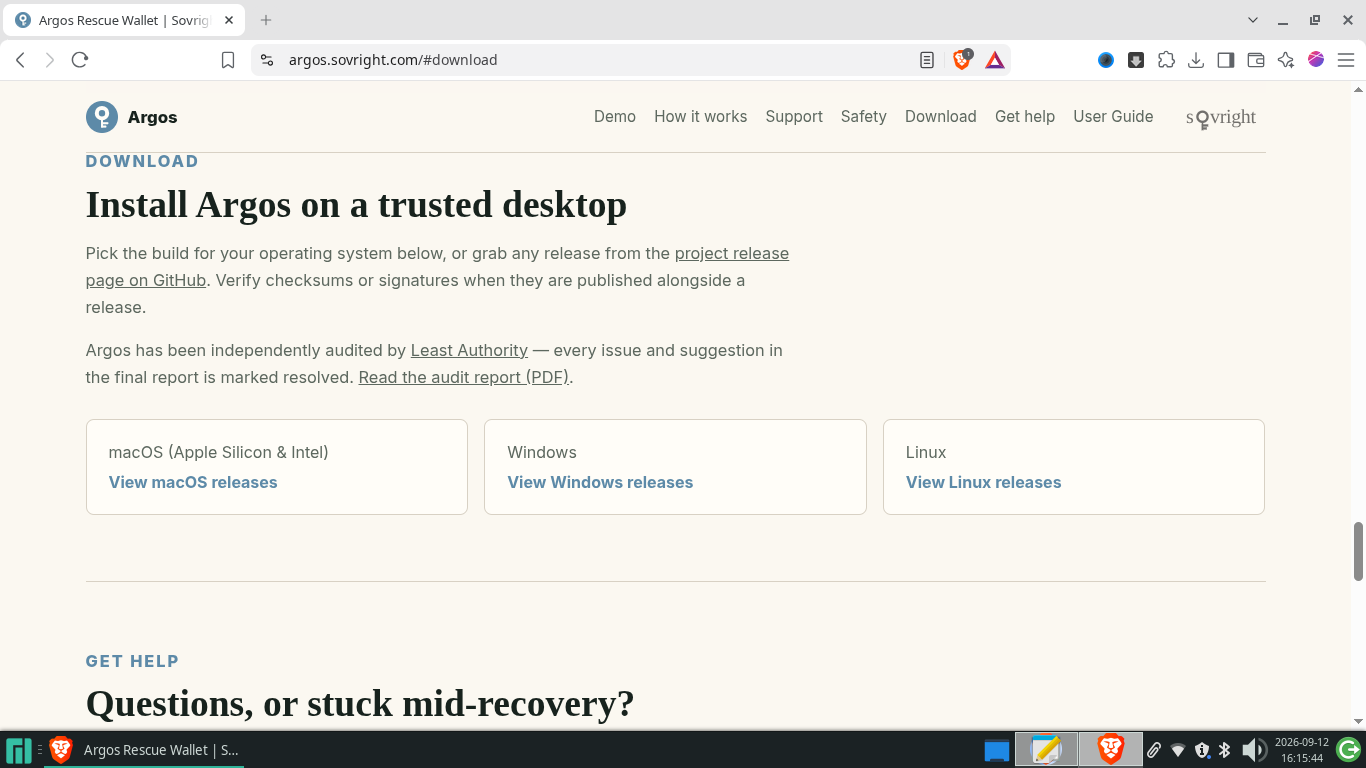
Argos download page showing macOS, Windows and Linux builds
- Verify the file is genuine — the only check that protects against a tampered file (every release ships with a build attestation — a GitHub-signed document proving the file was built from the official source code):
The builds are also digitally signed (macOS: checked by Apple; Windows: signed via Azure on behalf of Iqlusion Inc). Thegh attestation verify <downloaded-file> \ --repo sovright/argos \ --signer-workflow sovright/argos/.github/workflows/release.yml \ --source-ref refs/tags/<release-tag>SHA256SUMSfile next to them catches accidental damage in downloading only, not tampering. Bookmark the correct website address — during migrations, scammers multiply lookalike sites. - Argos passed an independent security review by Least Authority (report dated 29 June 2026 — all remarks fixed). Inside, all key operations (key derivation, file parsing, scanning, transfer building) run in Rust code; the on-screen part only renders the interface and briefly holds what you type. The program does one job — validate, scan, sweep — and exits: no persistent sessions, no background processes. Support: GitHub Discussions, the Signal group, support@sovright.com.
6.2 Prepare the receiver first
- Install ZODL or another wallet from the table above, write its new secret phrase down on paper, then tap Receive and copy the Unified Address (
u1...).
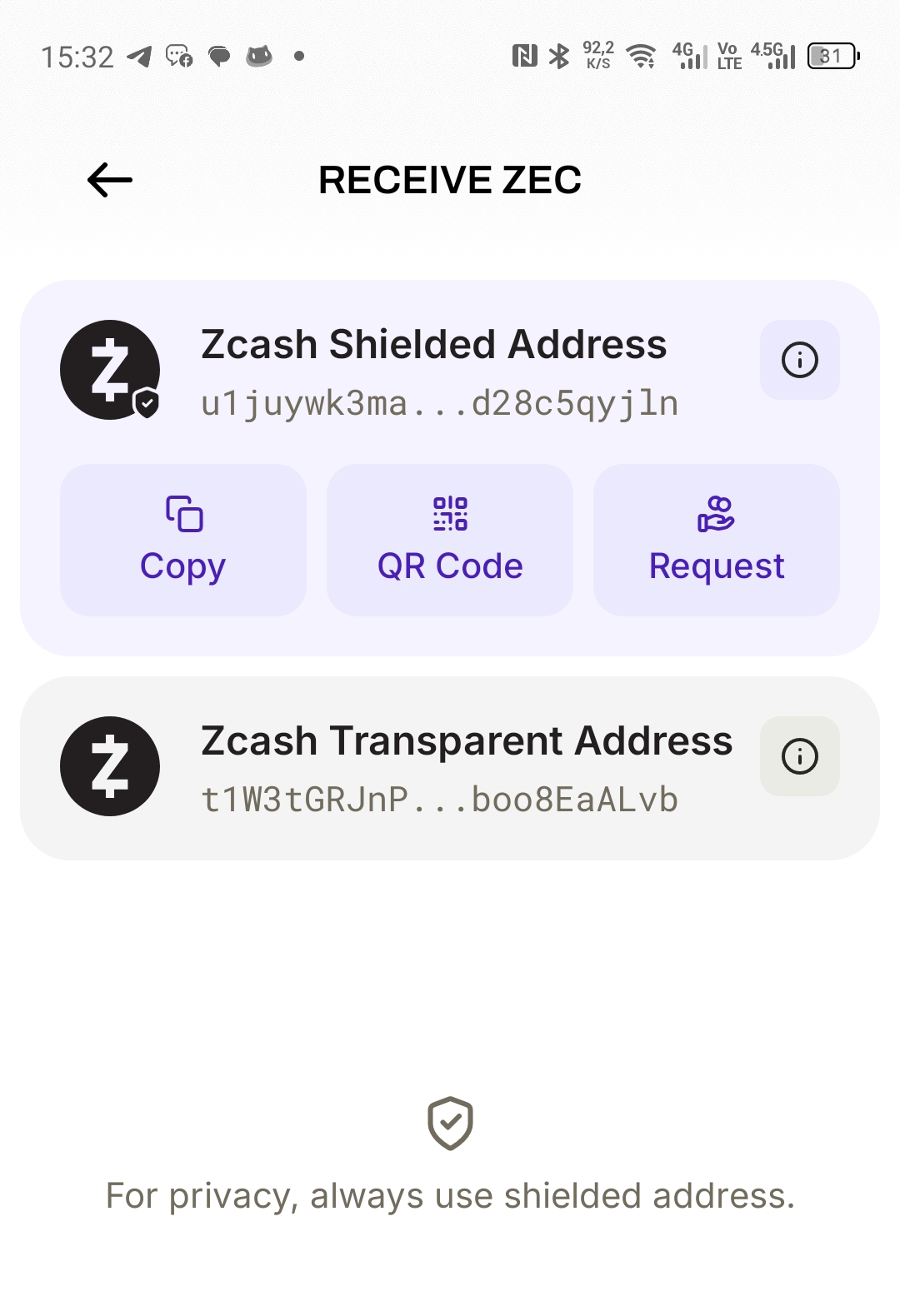
ZODL wallet Receive screen with a Unified Address
- Carry the address over to the recovery computer with no typos — e.g. via notes-to-self in Signal or synced notes. The receiving address is public, so this is a "copy without mistakes" step, not a secrecy one. Double-check the first and last 8 characters.
6.3 Set up a safe procedure
- Large sums: take a fresh computer set up from a verified system installer. An ordinary factory reset does not clean possible firmware-level infection.
- Smaller sums: during the procedure, run nothing but Argos and the system itself. No browser, no mail, no extra programs, no showing your screen to other people. Disk encrypted, system updated; don't put the computer to sleep while secrets are in memory.
- Your secrets are never sent anywhere: public block data comes in, only the finished transfer goes out. Argos support will never ask for your secret words, file, password, or key. Anyone who asks is a scammer.
6.4 Open your recovery source
- Launch Argos and choose "I have a wallet file" — for
wallet.dat. (The 24-word path does not cover Sprout.) - Select or drag in the
wallet.dat. Argos only reads it and changes nothing inside. If the file is encrypted — enter the password when asked (it lives only in memory and is never written to disk).
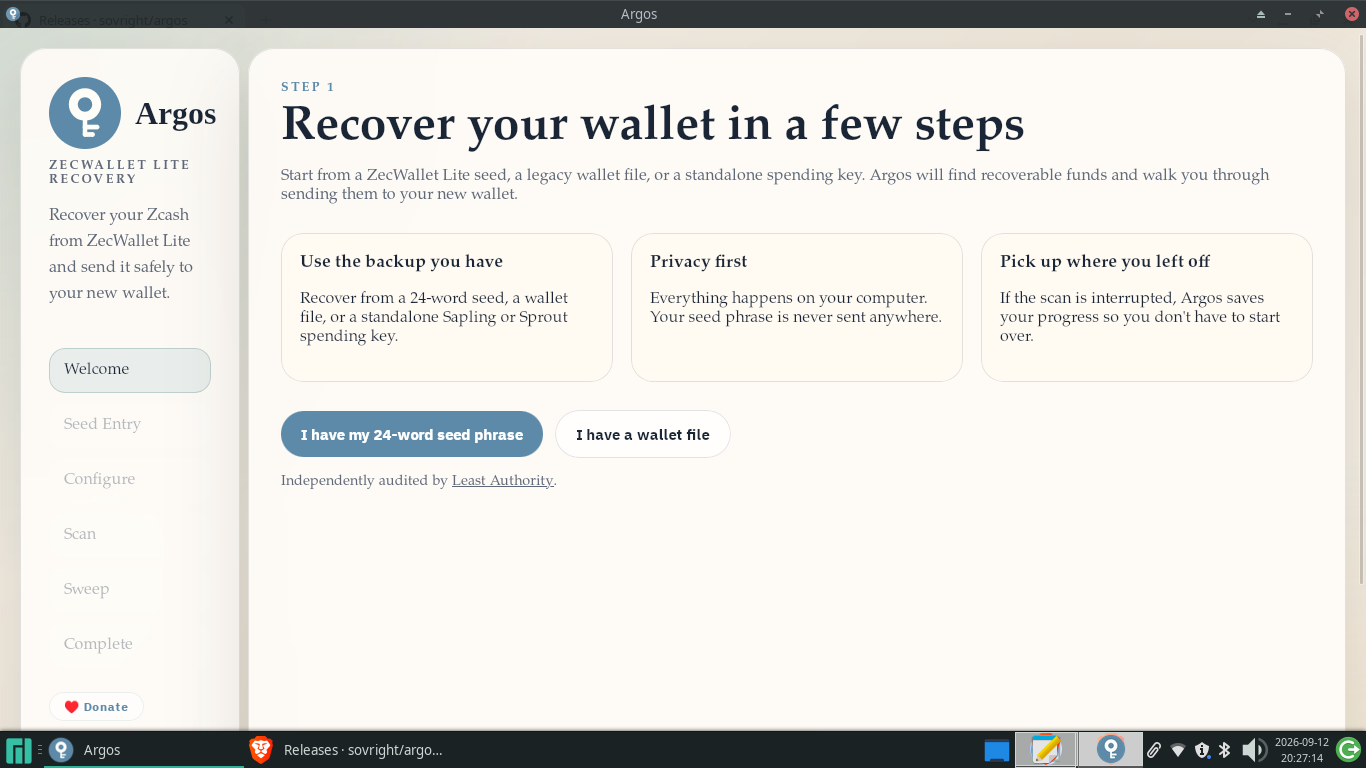
Argos welcome screen, wallet-file recovery selected
- Look at the counters: how many transparent keys, Sapling keys, and Sprout keys were found, plus which records could not be read. If instead of a file you only have a standalone Sapling key — paste
secret-extended-key-main1...keys (one per line); view-only keys won't do — they can't sign a transfer.
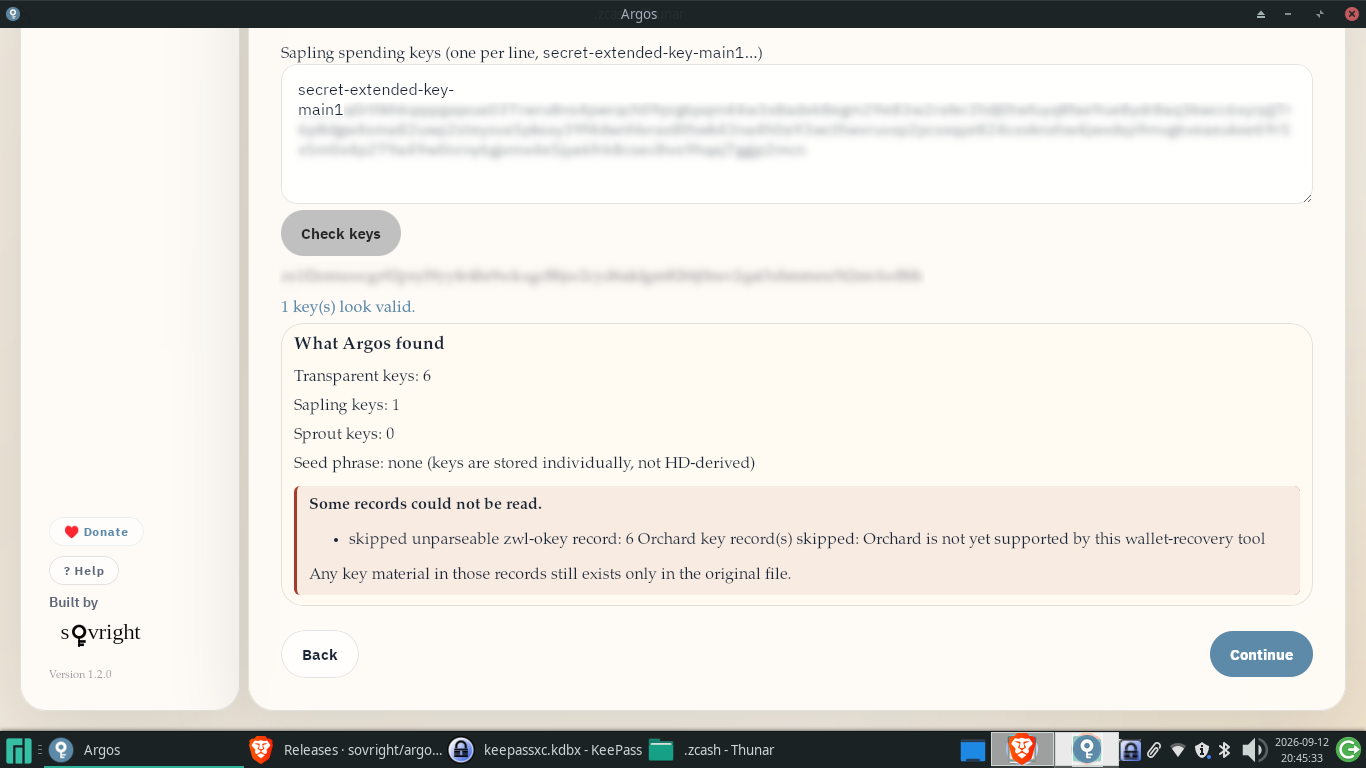
Argos screen showing recovered key counts
6.5 Configure and scan
- Fill in the settings: network — mainnet, unless you were playing with test money; wallet creation date — type a block number, estimate from a calendar date with Estimate from date, or press Auto-detect and let the program probe the chain itself (the earlier the date, the more thorough — but longer — the check); how many accounts to check — the default of 20 is enough for nearly everyone (most people had just one account; the program can walk up to 500, stopping after 20 empty in a row); receiving address — paste your
u1…Unified Address and press Validate destination to confirm it has an Orchard or Sapling part; server — leave on Recommended unless you run your own node. When ready — Start Scan.
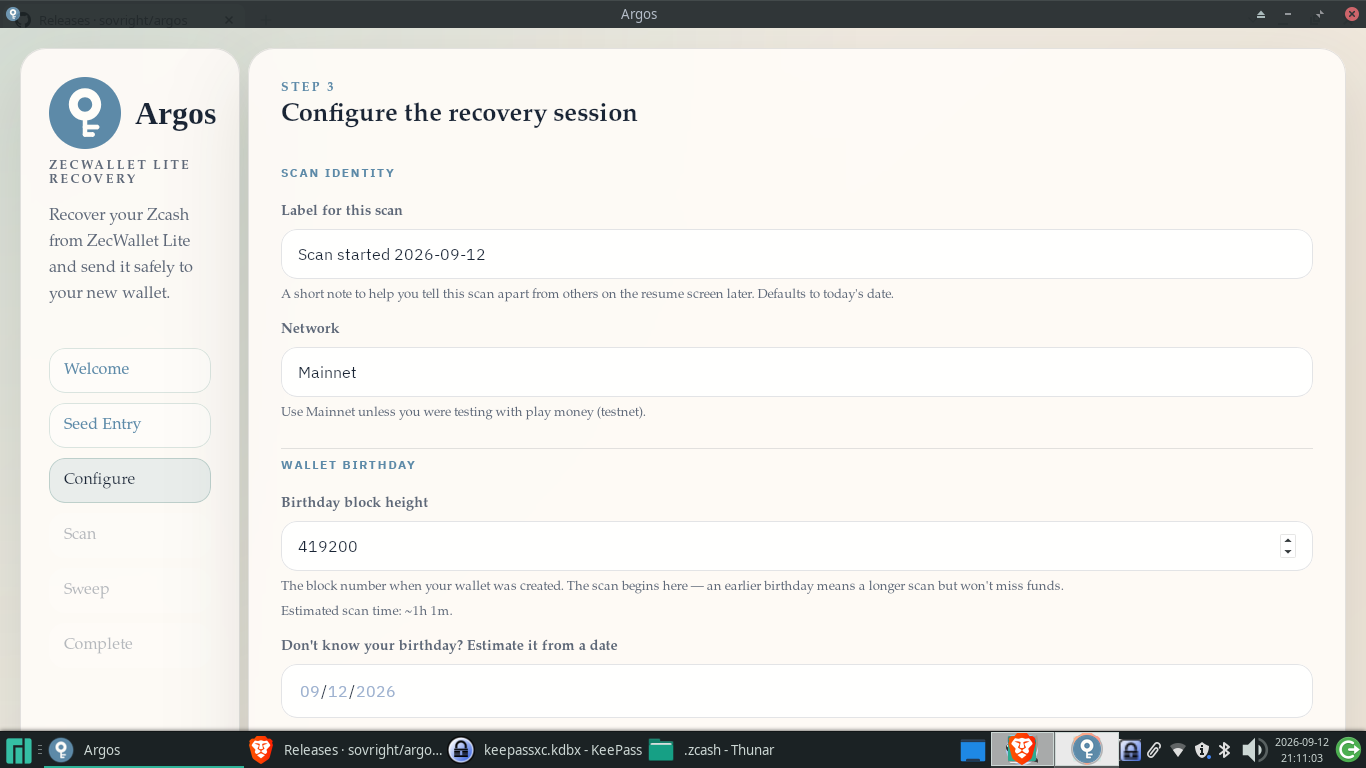
Argos scan configuration screen
- Start the scan. Argos first probes transparent outputs within seconds, then downloads the lightweight shielded-block summaries and totals up the money in Sapling and Orchard. Sprout is shown and withdrawn separately — don't mistake the ordinary total for the whole wallet if Sprout keys are present. Timing: anywhere from minutes (fresh creation date) to hours (date near the 2018 Sapling activation); the time estimate warms up after about 15 seconds.
- Progress is saved to the working folder — you can cancel and resume the scan at any time; to resume, re-run with the same settings (source, network, date, accounts) — it picks up from the last saved block. Don't put the computer to sleep mid-scan.
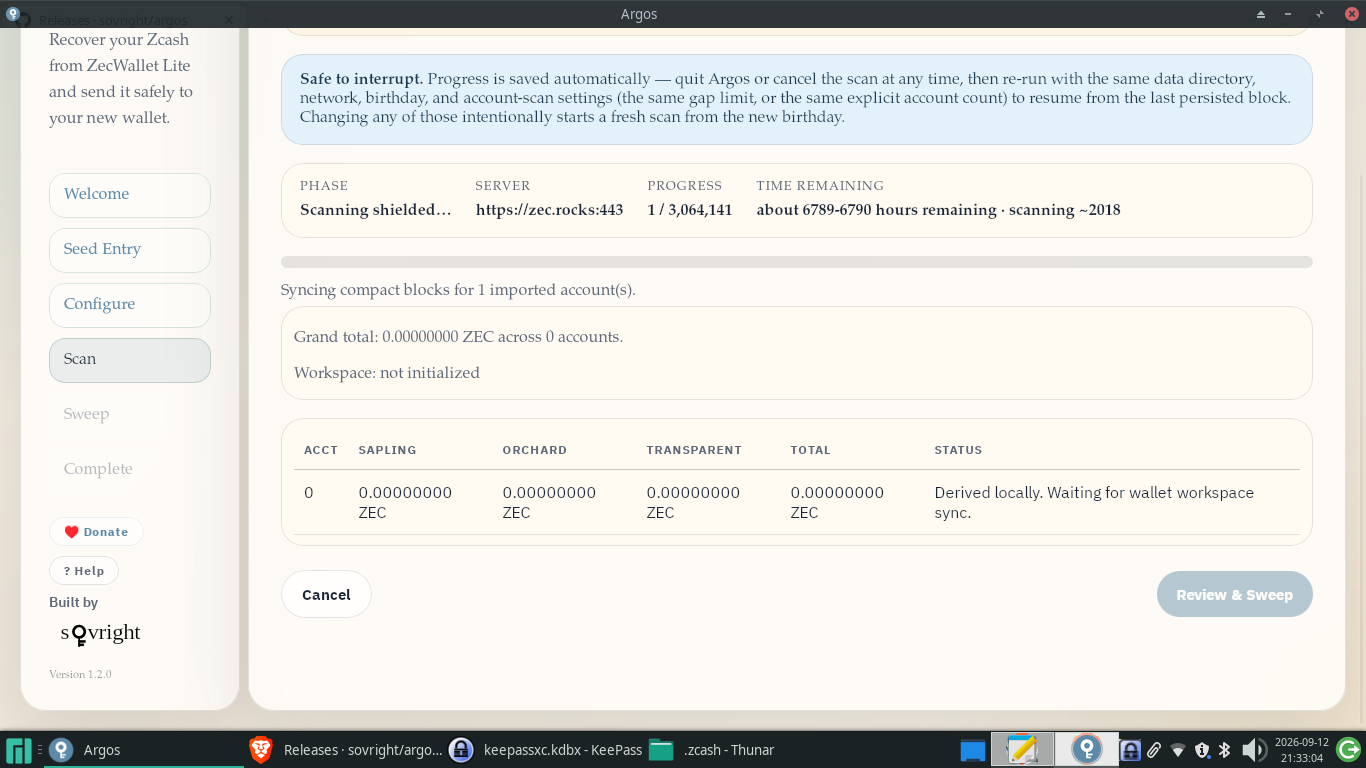
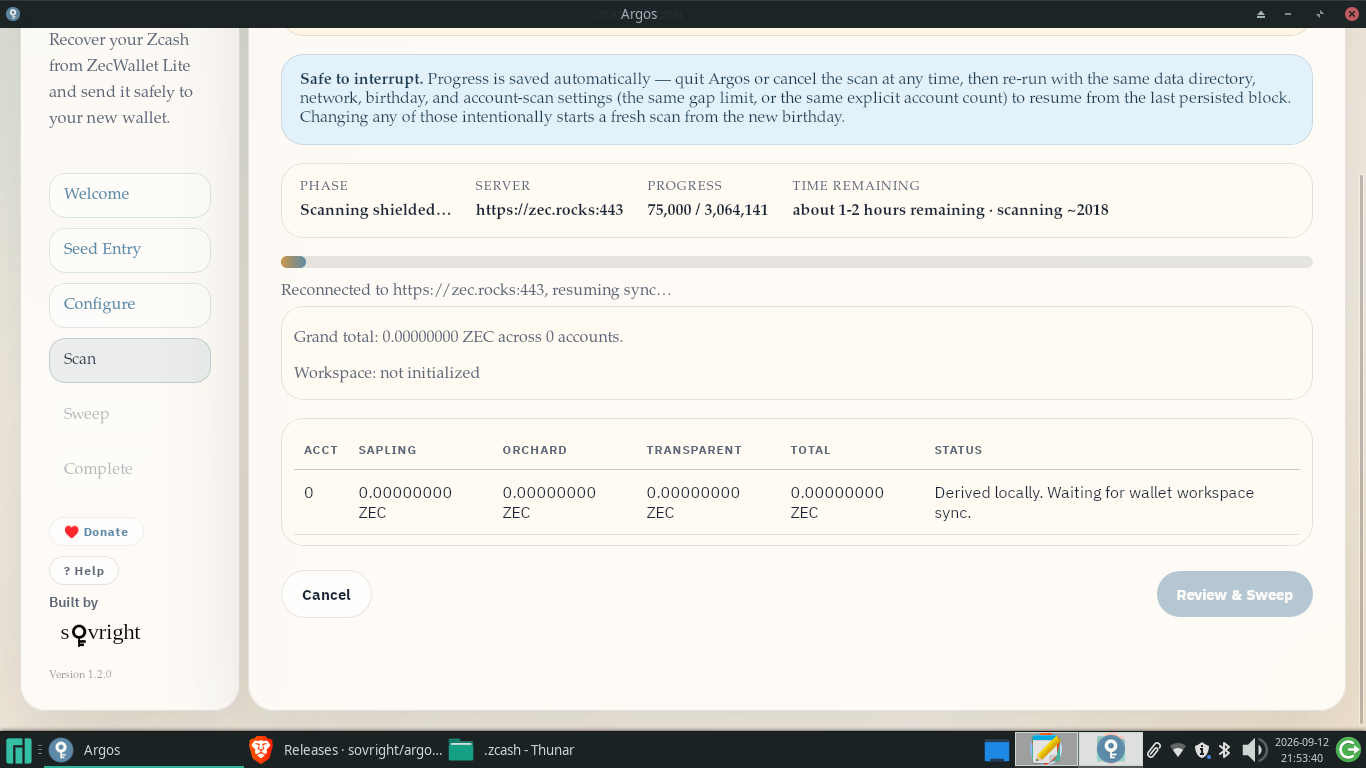
Argos scan progress with Sprout shown separately
6.6 The Sprout fork — two cases
- Case 1 — the file already contains ready coin data and a saved proof of ownership. Then Argos immediately offers the "Sweep Sprout funds" button. No network scan needed. Treat the displayed balance as the file's claim until the network accepts the transfer.
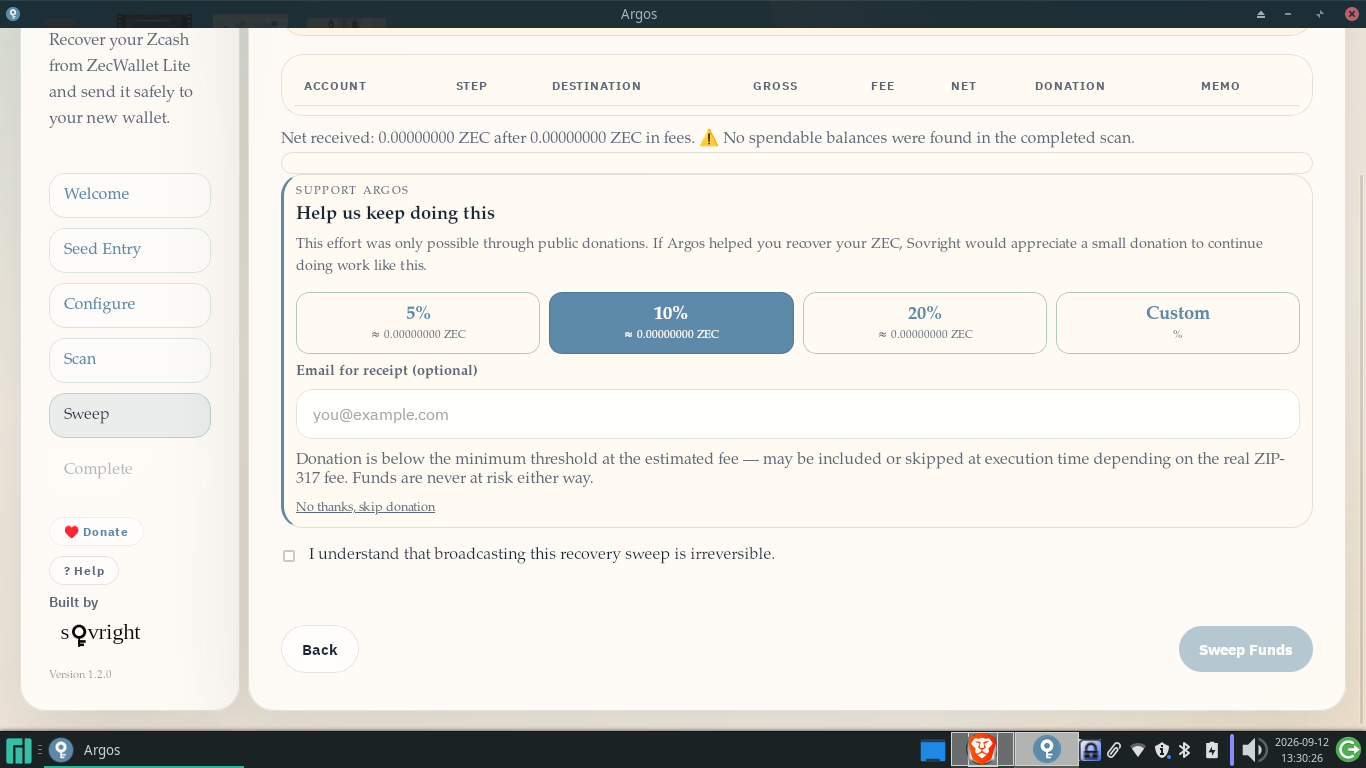
Direct Sprout funds sweep button in Argos
- Case 2 — keys exist but no ready data. Then a full Sprout scan starts. The lightweight summaries don't contain the needed ciphertext, so Argos downloads full blocks from the network's earliest days to the Canopy upgrade and tries to decrypt every old Sprout record in them (a JoinSplit — an old-format data chunk holding encrypted coins): 1,046,400 blocks, about 26 GB of traffic, several hours of work, under 500 MB on disk. You may stop — resuming continues from the stopping point.
- ⚠️ The in-progress save of such a scan is nearly the wallet itself (keys + decrypted coins + proofs). Guard it like the original. After a successful transfer Argos wipes it; delete leftovers only after the money is confirmed in the new wallet.
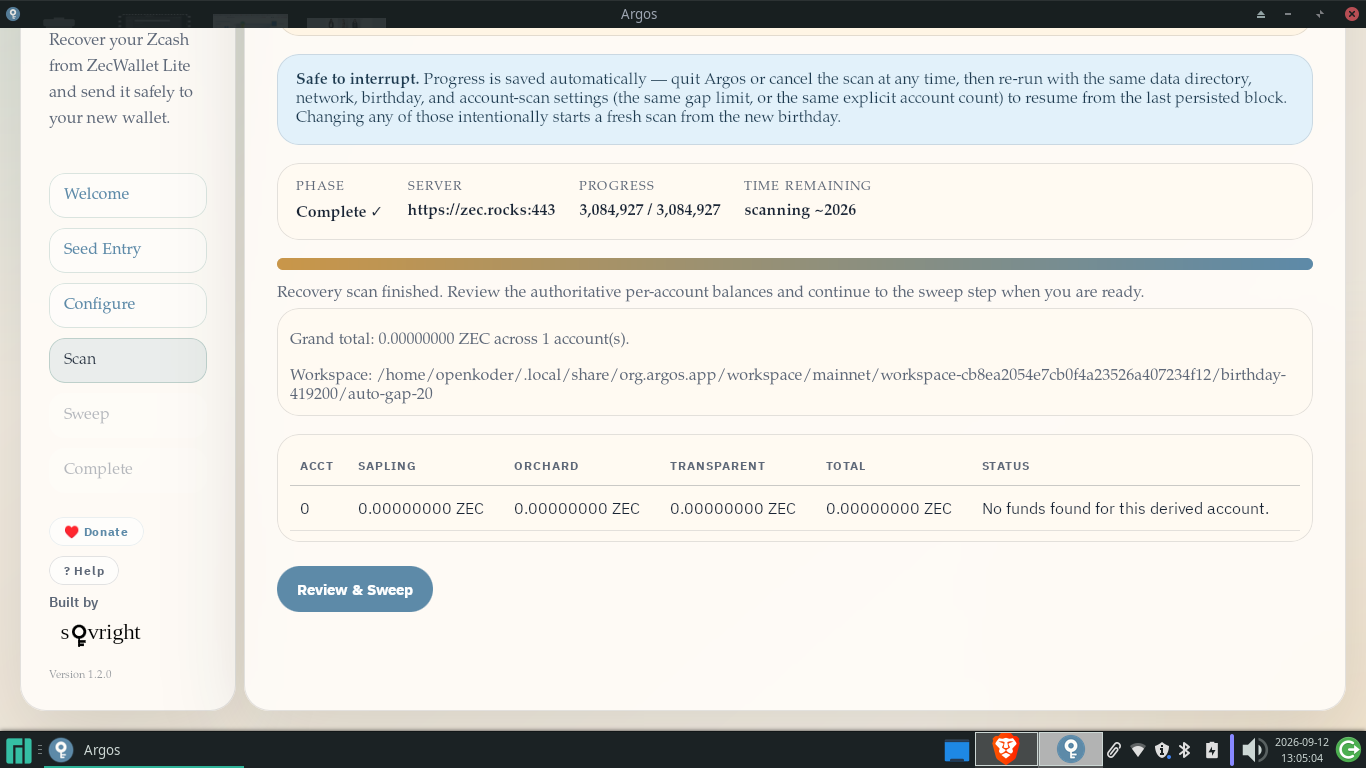
Full Sprout block-scan progress in Argos
6.7 Review and transfer
- Review the proposal. You already pasted the receiving address in Configure (§6.5): ordinary withdrawal requires a Unified Address (bare
t1…andzs…won't do there). The table shows per account: where to, gross, fee, net, memo; imported Sapling accounts and transparent outputs may produce separate transactions. The exception is the Sprout sweep: it also accepts a bare Sapling address (startingzs…), because Sprout money can only land in Sapling (from a Unified Address the program takes the Sapling part on its own). You cannot jump from Sprout straight to Orchard/Ironwood in one hop: the old format (JoinSplit) and the new format (Orchard actions — the "actions" of the new pool) are incompatible with each other; the Sapling → Ironwood step is then done by the new wallet. Check skipped dust and optionally set a maximum fee cap. - The transfer screen carries an optional donation to the Sovright developers (10% by default, adjustable — set 0 to skip; recovery is free either way). Both recipients and the memo are shown before you confirm. You can also say thanks later: the app has a ♥ Donate screen with Sovright's ZEC address — copy the address only from the app itself.
- Large sum? Run a tiny test first (e.g. 0.001 ZEC) all the way through to the end and make sure the money arrives and displays correctly. Only then move the rest.
- Tick the irreversibility acknowledgement box and press Sweep Funds. Sending cannot be undone. Then save the plain-text recovery report (where you moved, transaction IDs, what was skipped, where the working folder is). Never write secrets (phrases/passwords/keys) into it.
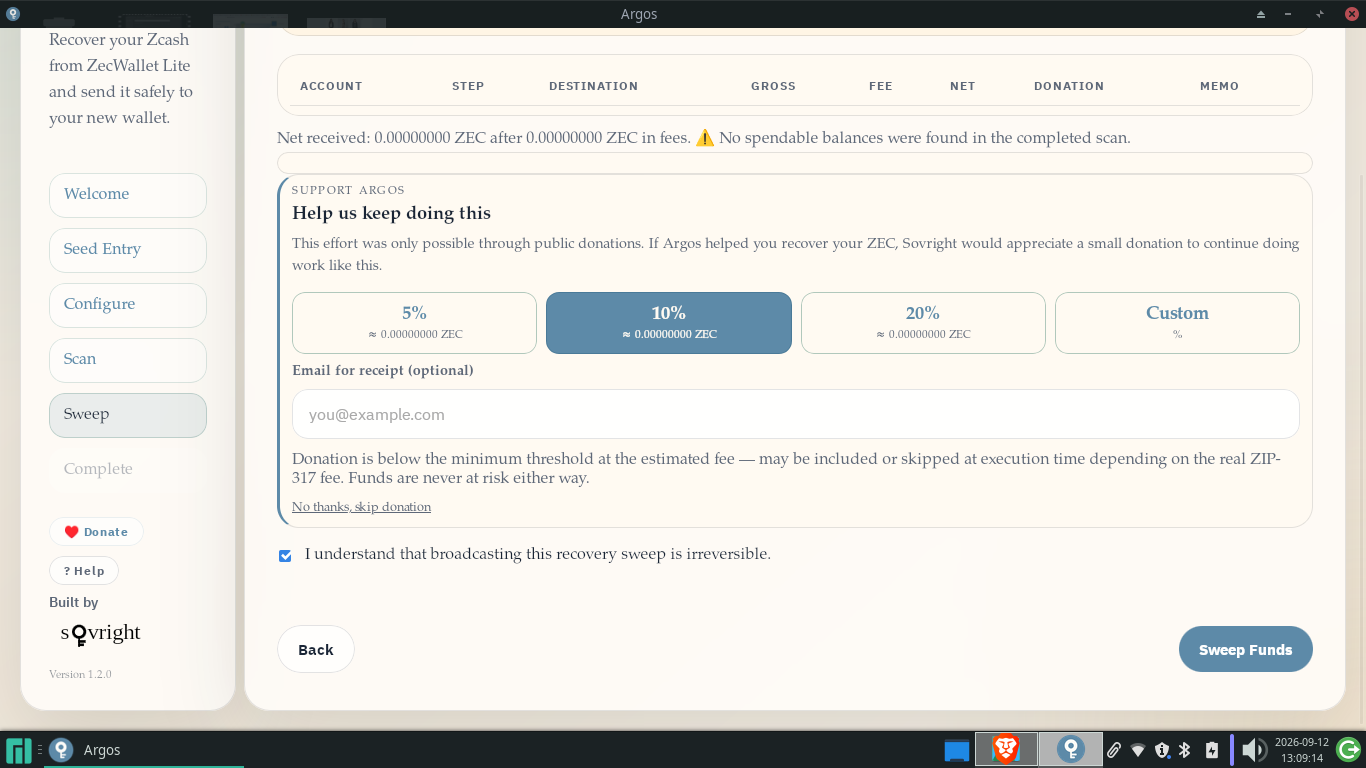
Transfer review screen in Argos
6.8 Confirm the arrival
- Transfers can sit "pending" if the server accepted them but they haven't landed in a block yet — check the transaction ID in the new wallet (after it catches up with the network) or in a block explorer.
- Keep the original
wallet.datuntil every pool has moved and confirmed. Only then retire it (see §11).
7. Path B — Argos command line + standalone Sprout key
This path is for when you only have an SK... (mainnet) / ST... (testnet) key, have no graphical screen, or need scripts. The command-line program is called argos; verify the downloaded file the same way as in §6.1.
Typical command shape (the exact option set changes between versions — check your version's help):
# 1. Peek into the wallet file offline (counters, Sprout addresses,# unreadable records) — the file is only read, nothing changes.argos inspect-wallet --wallet-file ./wallet.dat # 2a. If you have a wallet.dat with ready coin data — transfer directly.argos sweep-sprout --wallet-file ./wallet.dat --to <sapling-address-or-UA> ... # 2b. Key only: full scan first (26 GB, resumable), then transfer.argos scan-sprout --sprout-key-file ./sprout.key --data-dir ./argos-work ...argos sweep-sprout --to <sapling-address-or-UA> ...Notes:
- The
--wallet-fileoption (wallet file) can't be combined with--seed-file(phrase recovery);--sapling-key-filetakes standalone Sapling keys;--data-diris the working folder for saves; server addresses are comma-separated backups. - A balance assembled only from saved
wallet.datrecords is the file's claim until the network accepts the transfer; a full-scan result is computed from the chain itself. - The file password is asked only interactively, never as a command option, so it doesn't show up in command history.
- Transfers of imported Sapling keys are assembled in the PCZT format (Partially-Created Zcash Transaction — a transfer "draft" that is assembled and signed in parts) with the ordinary network fee, a memo, and a fee cap, and sent through the blockchain data server.
- Exact options:
argos --help,argos scan-sprout --help, and the README.
8. Path C — zecd + Zebra (for experienced users, in brief)
zecd is a wallet server (the second tool advertising Sprout support): it stores keys and scans blocks, but sees the chain itself only through your own Zebra node on the same home network (never open it to the internet).
The sketch: enable Zebra's command interface, install zecd (via the Rust language installer, ready-made archives/packages, or a Docker set), check the connection with chain-info, restore the wallet from a phrase with an approximate date via init --restore --birthday, start the background service — then ordinary commands (the get-address command returns a Unified Address).
This is a build-it-yourself path for node owners. Most people are better off with Argos (paths A/B): no node, no setup — everything needed is already inside.
9. Second step: Sapling → Ironwood (in the new wallet)
Your Argos transfer lands in Sapling. Finish the job inside the new wallet. The flow below follows ZODL (per the wallet's official instructions); other wallets are similar: automatic move, progress screen, and waiting.
Open the new wallet and let it fully catch up with the network. Ironwood-capable wallets find unmoved money themselves and show a migration screen ("migrating to Ironwood") or a progress bar; sometimes such money temporarily counts toward the "confirming" balance rather than "available". If you dismiss the screen, the wallet reminds you next time you open it.
Pick a migration mode. ZODL offers two:
- Private (recommended). The balance is split into several smaller transfers leaving at different times in the background. It becomes much harder for an outsider to link the visible amounts to your wallet. Transfers go through a separate server rather than the one the wallet syncs from — that adds privacy too.
- Right away. The whole balance leaves in a single transfer. Faster, but less private: the full amount crosses the "turnstile" at once.
(Simply sending money to a shielded address as usual also works as a move — but with the same effect as the "right away" mode: amounts and timing are not spread out.)
Confirm the plan. First the wallet takes a quick internal step: it splits the balance into parts with a transfer to itself (no money leaves the wallet; only the ordinary fee is paid). Then it shows the whole plan — the set of transfers and rough timing — and usually asks for a single confirmation. Hardware Keystone owners with many balance "pieces" may need to sign several batches.
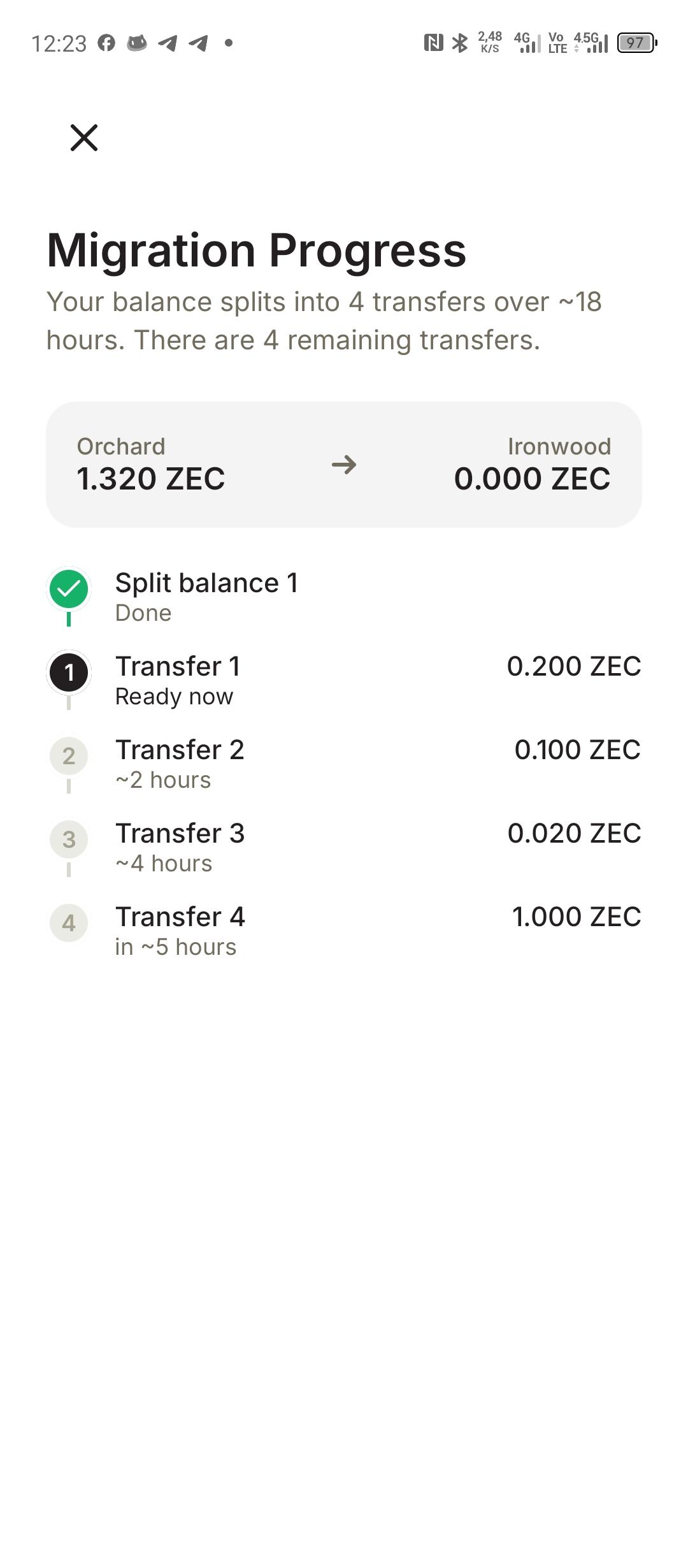
Ironwood migration indicator in a mobile wallet
- Let the transfers go. Transfers are sent in the background whenever the phone's conditions allow (per document ZIP 318 — on a deliberately stretched schedule). How long to wait: small sums often take under a day; large ones are deliberately stretched to a couple of days for stronger privacy. Progress shows on screen ("Transfer 2 of 5", remainder in the old pool). You may close the app — progress is saved and resumes from the same spot; most reliably, reopen the app from time to time: it shows progress itself and requests any stuck transfers.
- Set up network privacy and background work. Before confirming, route the transfers through Tor (strongly recommended): without it, your IP address is visible to the remote server and can be linked to the moving amounts — and amounts in the "turnstile" are public. If Tor is unavailable on your network or in your region — switch on a trusted VPN. Allow the wallet notifications and background activity: on Android — a battery-optimization exemption; on iPhone — Background App Refresh in Settings → Apps → ZODL (usually already on; without it you'll have to approve every transfer manually).
- Don't send the whole balance meanwhile. Unmoved money can't be spent until it moves; spending mid-move produces confusing errors.
How it works inside: each crossing is a new-format transaction through the "turnstile": the amount is visible to all in the transfer's dedicated fields (value-balance — the lines openly recording how much money crossed from pool to pool), while who paid whom stays hidden. The same logic as the old Sprout→Sapling "turnstile". Nothing is needed from you beyond patience.
Once done, new incoming transfers go straight to Ironwood (the old pools no longer accept other people's transfers), and the whole balance is spendable again.
10. Privacy: what everyone sees during the crossing (read before transferring)
What a "turnstile" is: a network rule by which money moves from a closed pool to the new one so that the amount is visible to all, while sender and receiver stay hidden. This lets anyone verify: no made-up money left the pool.
- Visible to all: the moving amount (by network rules it passes through open accounting — you don't need to set up an open address for that).
- Hidden: sender, receiver, individual coins.
- The old
zcashdtool (ZIP 308) hid each move in a crowd: transfers went in batches with random amounts every 500 blocks, and yours got lost among others'. Argos makes a direct transfer — assume the amount and timing are visible and can be linked to your operation. How to soften it: move to a fresh Unified Address under your control, wait for the Sapling → Ironwood step and only then spend, don't publish the transaction ID next to your name. - This openness of the amount is the point of the "turnstile": no more can leave than was honestly put in. That's how the claim "there is no extra money" becomes a fact anyone can check.
11. Security checklist
Do:
- Download only from the official site and Releases page; verify genuineness (§6.1). Bookmark the website address.
- Match carefulness to the sum (§6.3); check the receiving address character by character before transferring.
- Set a maximum fee cap if you need a hard ceiling.
- Keep the original
wallet.datuntil every pool has moved and confirmed. - Keep the recovery report with your notes (no secrets in it); wipe working-folder leftovers only after the money's arrival is confirmed.
- After the move, make a fresh backup of the new wallet (write the secret phrase on paper) — it is now your main backup.
- For the move in the new wallet, switch on Tor (or a trusted VPN) and allow notifications and background activity.
After the transfer — retire the old secrets:
- Any infection that touched the recovery computer may now know the phrase/password/key. The long-lived compromise is the secret, not the computer. Move to a fresh wallet, confirm, then write off the old backup and never use its addresses again.
- If you ran the quick ZODL check from §3 — delete that test wallet: its only job was the check, otherwise the phrase now lives in a second place.
- Sprout-scan in-progress saves: after a successful transfer Argos wipes them; delete leftovers only after confirmation in the new wallet. Safely delete old files from the working computer after the finale (you may keep one encrypted copy offline just in case, but stop using those addresses).
Never:
- Never enter secret words and keys on any website — the Argos site only explains and lets you download.
- Never show secrets to "support" in any chat — those are scammers.
- Don't show a screen with secrets over video; don't wipe the wallet file before final confirmation; don't use Argos older than 1.1.0 (on today's network the transfer will fail).
12. If something went wrong
| What happened | What's going on and what to do |
|---|---|
| Scan finds money but the transfer fails | Build older than 1.1.0 on today's network → update Argos to the latest and re-run. Nothing is lost (the rejected transfer had no effect). |
| Transfer fails even on a fresh version | The working folder may be out of date → go back to Configure, re-run the scan with the same settings, then retry the sweep. |
| Phrase is rejected | Wrong phrase/typos/extra spaces → you need exactly 24 standard-dictionary words of the ZecWallet Lite phrase, in the right order. (And remember: the phrase alone never covers Sprout.) |
| Auto-detect found no birthday | The wallet may have no transparent history → set the date manually through the date picker. |
| The check runs very slowly | Creation date set too early → use the nearest date you're sure of; keep the working folder and continue. Full Sprout scans are inherently hours-long + ~26 GB. Long pauses while shielded blocks sync are normal — the server may be catching up; watch the block counter: as long as it moves, the scan is working. |
| Server won't connect / connection drops | Argos reconnects on its own up to 10 times → if it keeps dropping, switch the server preset to a different public node; check mainnet is selected. |
| Account "skipped" in the proposed transfer | Too tiny an amount / hit the fee cap / not enough for the fee → read the skip reason; moving dust is sometimes uneconomical. |
| Nothing found | Check mainnet is selected (not testnet), the creation date is early enough, and the source is right: the phrase alone never covers Sprout — you need the file or the key. |
| Sprout keys exist but no spendable coins | The file has no ready coin data → keep the file and run the full Sprout scan; don't treat the ordinary total as complete. |
| New wallet shows money as "confirming" / won't let you spend | Second step in progress → keep the wallet open and updated until the Ironwood move completes; don't force spending. |
zcashd won't start / froze |
That's by design — the halt at block 3,417,100. Carry the wallet file over through Argos instead of trying to revive the program. |
| Move in the new wallet "stuck" / transfer "ready to send" | Normal for background sending → reopen the app, tap Send now; check notifications and background activity (Android: battery-optimization exemption; iPhone: Background App Refresh for ZODL). |
| Transfer "could not be sent" | Usually the funds moved or the transfer expired → open the app and follow the prompt to create a fresh transfer for the remainder. Nothing is lost. |
| Second step barely crawls | Deliberate, for privacy: small sums take under a day, large ones up to a couple of days. Progress is saved; you may close the app. Each transfer pays an ordinary small fee. |
Still stuck? Ask in Argos discussions on GitHub (public — better for non-secret errors), the Signal support group, or support@sovright.com — never sending secrets. For problems with the new wallet itself (a move stuck even after reopening), write to its support — e.g. ZODL: support@zodl.com — saying which step you're stuck on.
13. FAQ
Is there a deadline?
No published date; the move is voluntary. But old pools are heading for shutdown (money then becomes unreachable), quantum-break protection exists only in Ironwood, and every year of waiting risks lost backups. The Sprout tail — ~25 thousand ZEC unmoved for ~8 years — shows what "later" usually means.
How much does it cost?
Just the network fee (pennies). Argos itself is free; the in-flow donation (10% by default) is optional and turns down to zero.
Can I do Sprout → Ironwood in one transfer?
No. The old format (JoinSplit) and the new one (Orchard actions) are incompatible, so Argos lands Sprout money in Sapling; then the new wallet moves Sapling → Ironwood on its own.
My ZEC is on an exchange. Does this concern me?
Nothing to do — exchange balances sit outside your shielded pools. Future withdrawals arrive transparent or (shielded) straight into Ironwood.
I have 24 ZecWallet Lite words and think there was Sprout money.
The phrase restores only transparent addresses, Sapling, and Orchard. For Sprout you need the original wallet file or a standalone SK... key. Without either, that money can't be recovered.
Why did "open accounting" flash by in my crossing?
By design: the amount passes through it for verifiability without creating an address you must manage. Who paid whom stays hidden.
Old instructions tell me to go through a t... address manually. Should I?
No. That's what people did before automatic tools existed: pushing Sprout → your own transparent address → Sapling, exposing the amount and risking a mistake on the extra step. Argos performs the crossing directly under the network rules: the amount honestly passes through open accounting, but no address setup or extra step is needed.
Which wallet should I pick for receiving, and where is the full list?
Start with the table in §4 (ZODL by default; Vizor, Keystone, Zkool, Noir, Unstoppable for scenarios). The full Ironwood Ready–labeled list is in the catalog at zechub.wiki/wallets.
Is this related to the NU7 vote (deadline 14 September 2026)?
No — that coin-holder vote on the next upgrade is separate project governance that merely shares the calendar.
14. Versions & references
- Written 14 September 2026 for the post-NU6.3 network (Ironwood live since block 3,428,143;
zcashdhalted at block 3,417,100; Argos 1.1.0 minimum, latest seen 1.2.0). - ZecHub wallet catalog
- Argos Rescue Wallet — download page · User Guide · Source & releases · Least Authority audit (PDF)
- The tweet that kicked this off
- ZIP 308: Sprout to Sapling Migration · ZIP 318: Orchard to Ironwood Migration · ZIP 2005: Quantum-recoverable notes · ZIP 258: activation heights
- Official Sprout-to-Sapling docs (history)
- Ironwood migration tracker · Cake Wallet: Ironwood migration · ZODL: Ironwood announcement
- Moving funds to Ironwood in ZODL (Zcash en Español — translation of the official guide)
- zecd quickstart ·
zcashdEnd of Life
Support me
Telegram:
XXSCrypto - Консультации и обучение работе с криптовалютой: https://t.me/xxscrypto
Free2z: https://free2z.cash/TopCrypto
Buy me coffee: https://www.buymeacoffee.com/openkoder
Unified ZCash address:
u1jn0vcvdaglq4cyuek7kh5pqmkyk4aph8lxnlyd4wq76alucwq5empshjkr0gfgs6k2xm7dg667zz7243s2gdczm6l863426a30v0gelz7aezv55zglf8vn3khqkvk0vlvj59nm3xn92sm9dhr9rrkstfss7uhze3tukw2eukzyy3gktz
Transparent ZCash address:
t1W3tGRJnPumE2dyn2PvgwGSdboo8EaALvb