In the world of cryptocurrencies, having a secure and reliable connection is key to enjoy a worry-free experience. In this article we show you how to customize the server connection in several wallets using Zaino servers. The configuration is simple, fast and secure, designed for users looking for the best without complications.
What is Zaino?
Zaino is an indexer for the Zcash blockchain developed in Rust. Its function is to allow both light applications - such as wallets or block explorers - and full clients to easily access all the necessary information without having to download the full history of the chain.
With a strong focus on security and privacy, Zaino manages the finalized chain, the non-finalized chain and the mempool, offering robust connections across the entire ecosystem. In addition, it is designed to maintain compatibility with platforms such as Lightwalletd and Zcashd, facilitating a smooth transition.
Connect to Zaino servers 🌐
Before we begin, remember that these instructions use Zaino servers. The recommended URLs for production connection are:
If you wish to connect to the test network (TESTNET), both ZINGO and BRAVE Wallet allow you to do so. To do so, simply repeat the same steps using this URL:
With these addresses, you ensure an optimal and secure connection to the Zcash network.
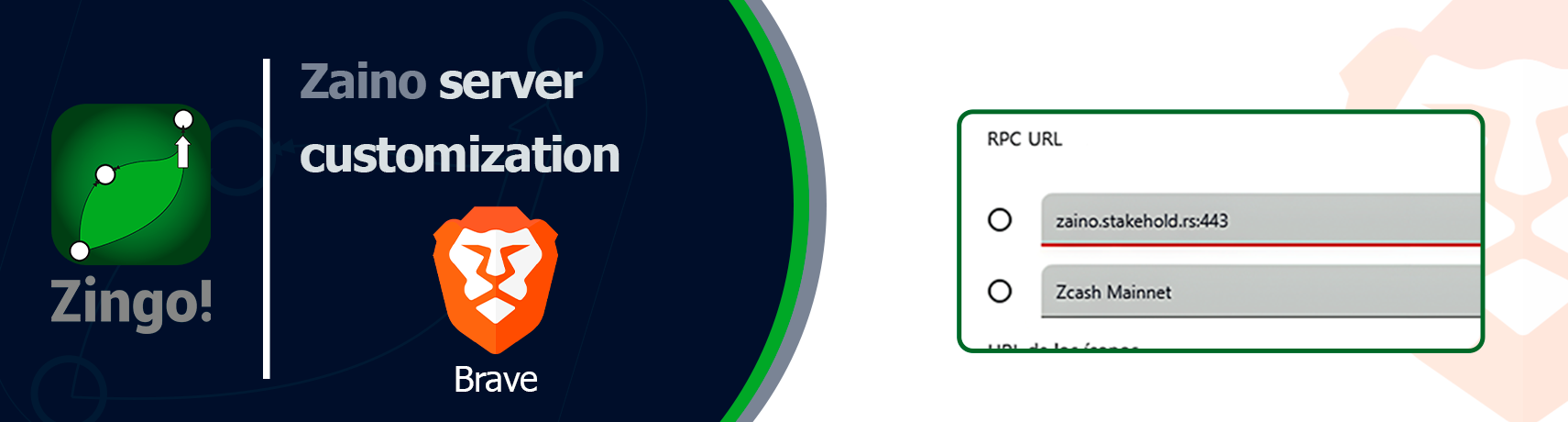
🟠 Brave Wallet
- Access the menu: Tap the hamburger menu icon (located in the upper right corner).
- Go to Settings: Select the Settings option.
- Go to Web3: From the side menu, tap Web3.
- Browse Wallet Networks: Go to Wallet networks and look for the Zcash Networks section.
- Edit Zcash Mainnet: Tap the three dots next to Zcash Mainnet and select Edit.
- Add the new RPC URL: Click the + button to add the new URL. Paste the server address along with the port.
- Save changes: Select the newly added server and tap Save to apply the settings.
🟤 Ywallet
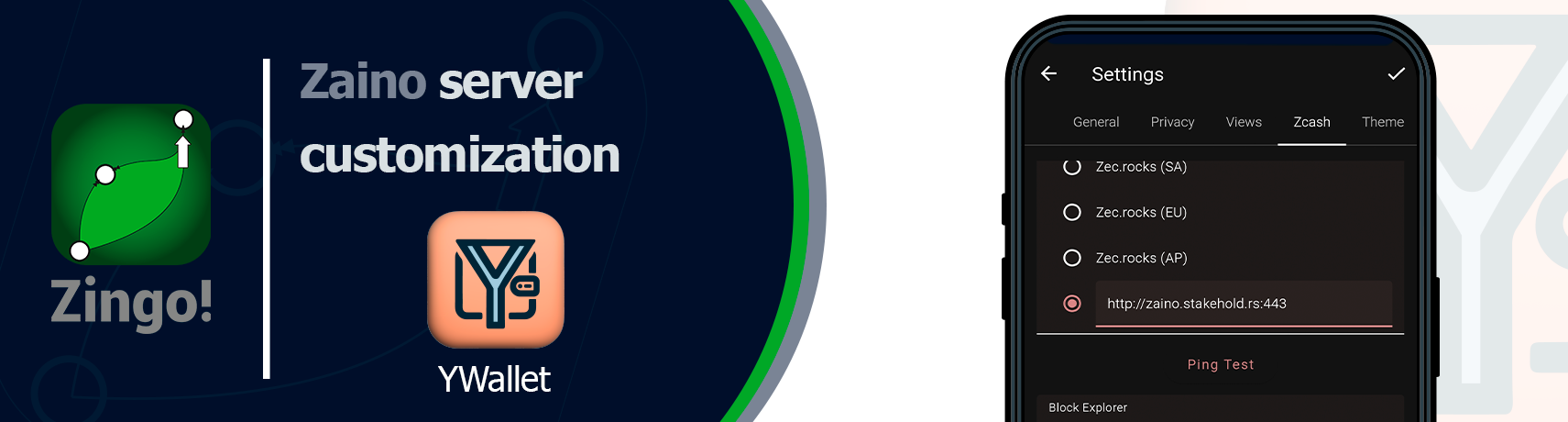
- Access the settings: Tap the gear icon on the top right.
- Select the Zcash tab: Within the menu, choose the Zcash tab to view specific options.
- Customize the server: In the Server section, tap the space provided for entering the URL and paste the server address.
- Save changes: Tap the check icon (✔️) at the top right to confirm and save the settings.
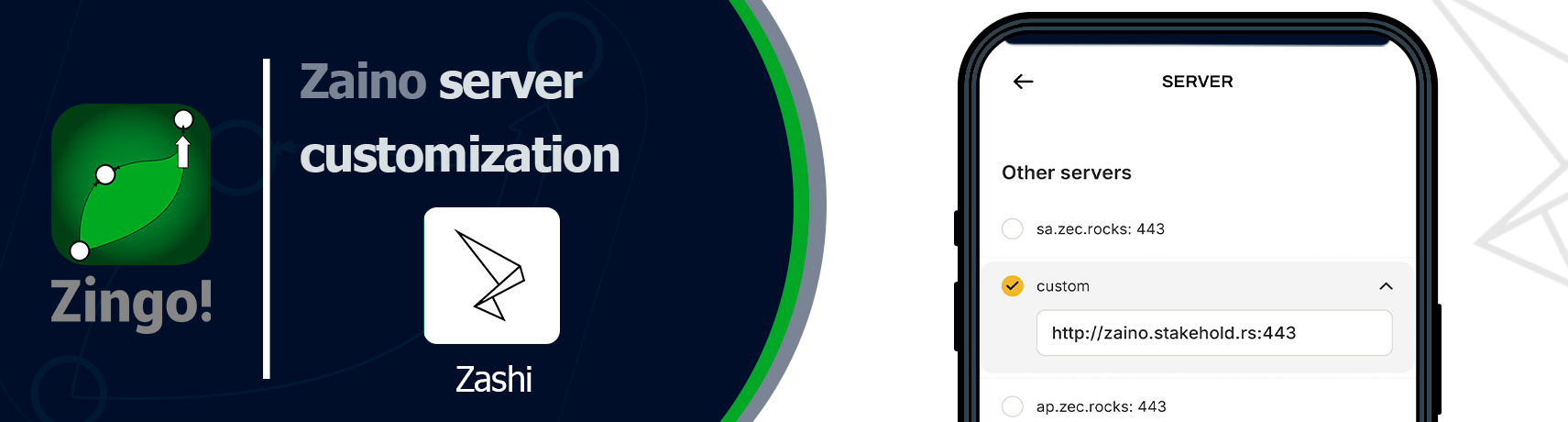
⚪ Zashi
- Open Settings: Tap the gear icon or hamburger menu in the upper right corner.
- Go to Advanced Settings: Select Advanced Settings for more options.
- Choose Server: Within this menu, look for the option to configure the server.
- Select Custom mode: Enter the corresponding host name and port, using one of the Zaino servers.
- Save the selection: Confirm and save the configuration to apply the changes.
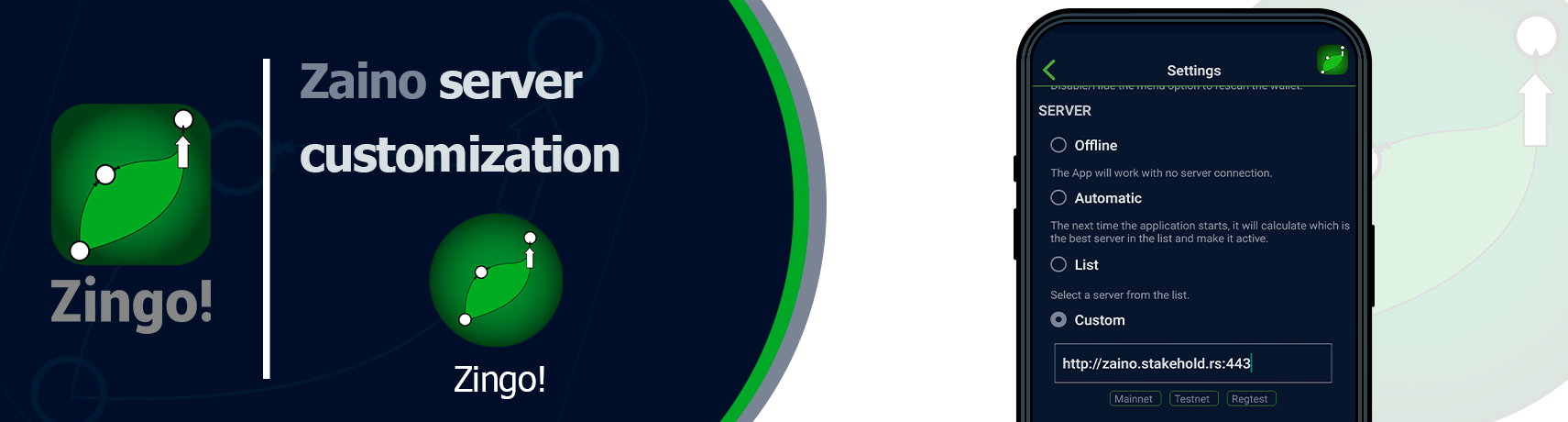
🟢 Zingo
- Access the settings: Tap the gear icon in the upper right corner.
- Scroll down to the server section: Scroll down to locate the section for server settings.
- Paste the URL and save: Insert the server address, select Mainnet and save the changes.
📄If you want to know more details on how to customize other servers, we invite you to read the article Server Configuration, where advanced options and settings are explored.
If you want to delve into other aspects of personalization or discover new techniques to improve the security of your blockchain applications, continue exploring this fascinating universe. Innovation and security are at your fingertips!
Install Zingo!🍃
🤖Google Play | 🍏App Store | 💻Zingo-PC | ✅GitHub

