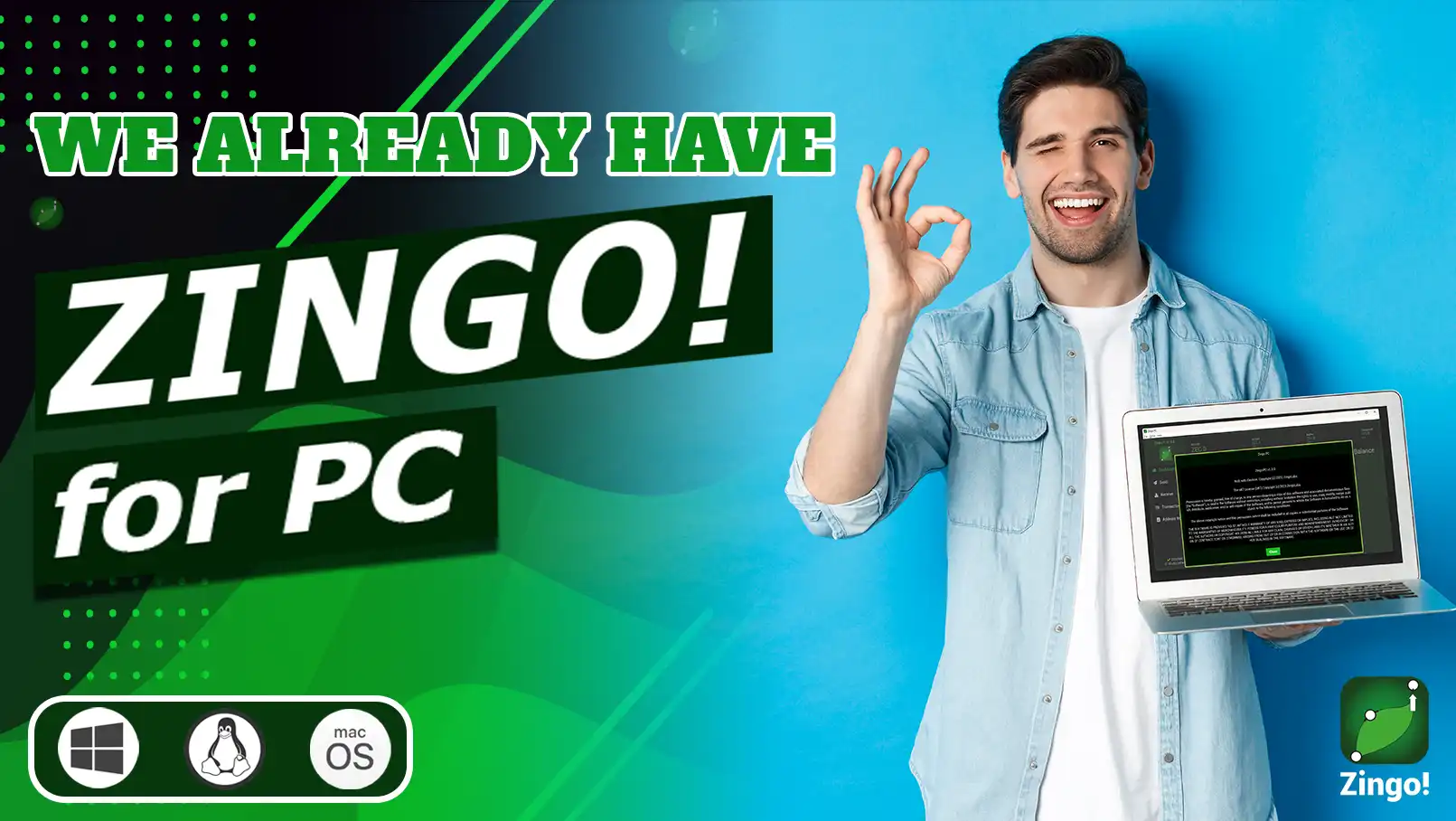

We have listened to your requests and in the last few months we have been working on Zingo PC, a desktop wallet where you will be able to store, send and receive your ZECs safely and without custody.
Zingo PC is a wallet with a simple interface for both basic and advanced use, these are some of the features you will get in this first version:
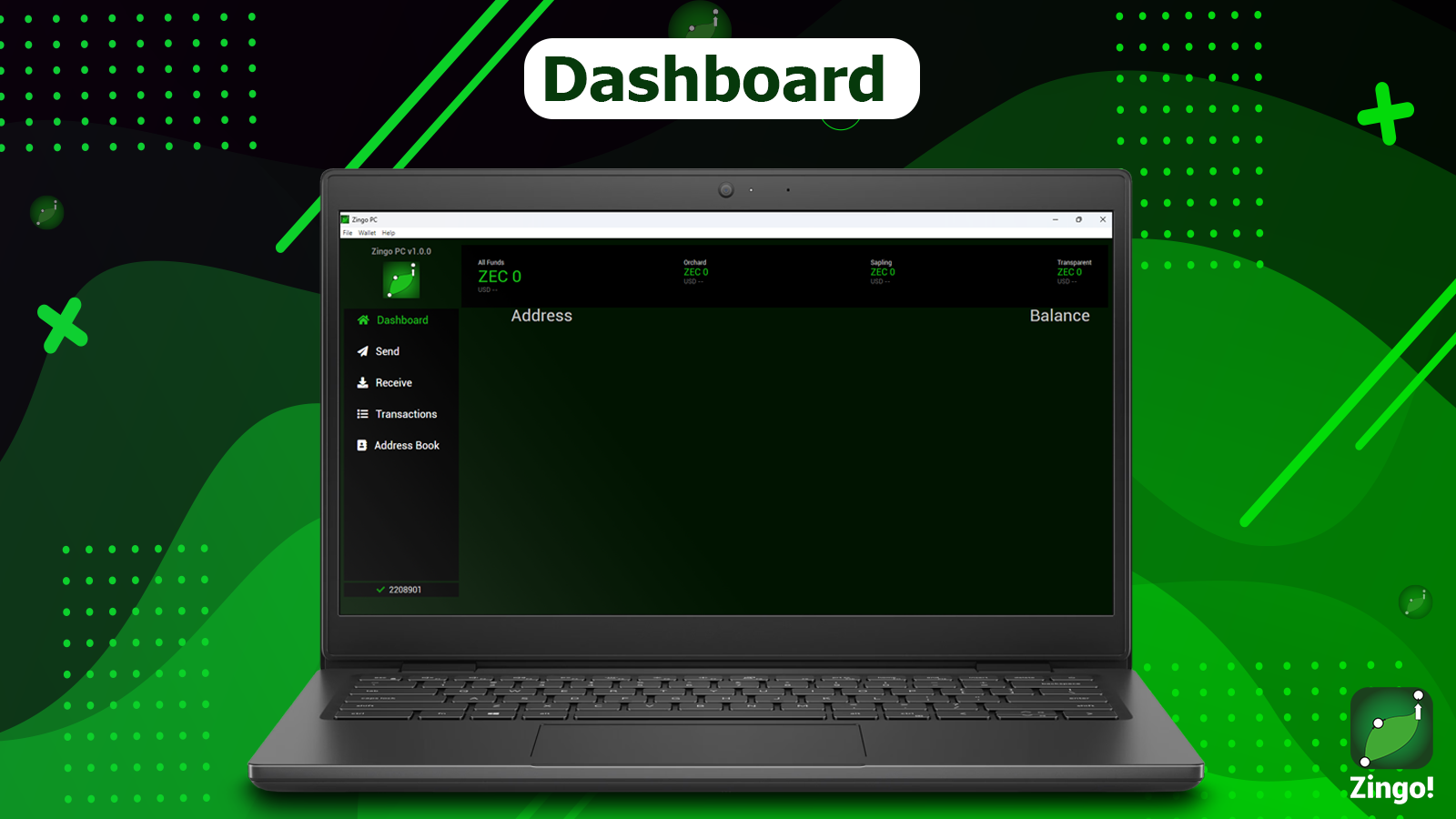
Dashboard
View your total balance, the funds you have in each pool and their conversion to Fiat (USD). From the dashboard you can use the options to shield funds or transfer the entire balance to Orchard.
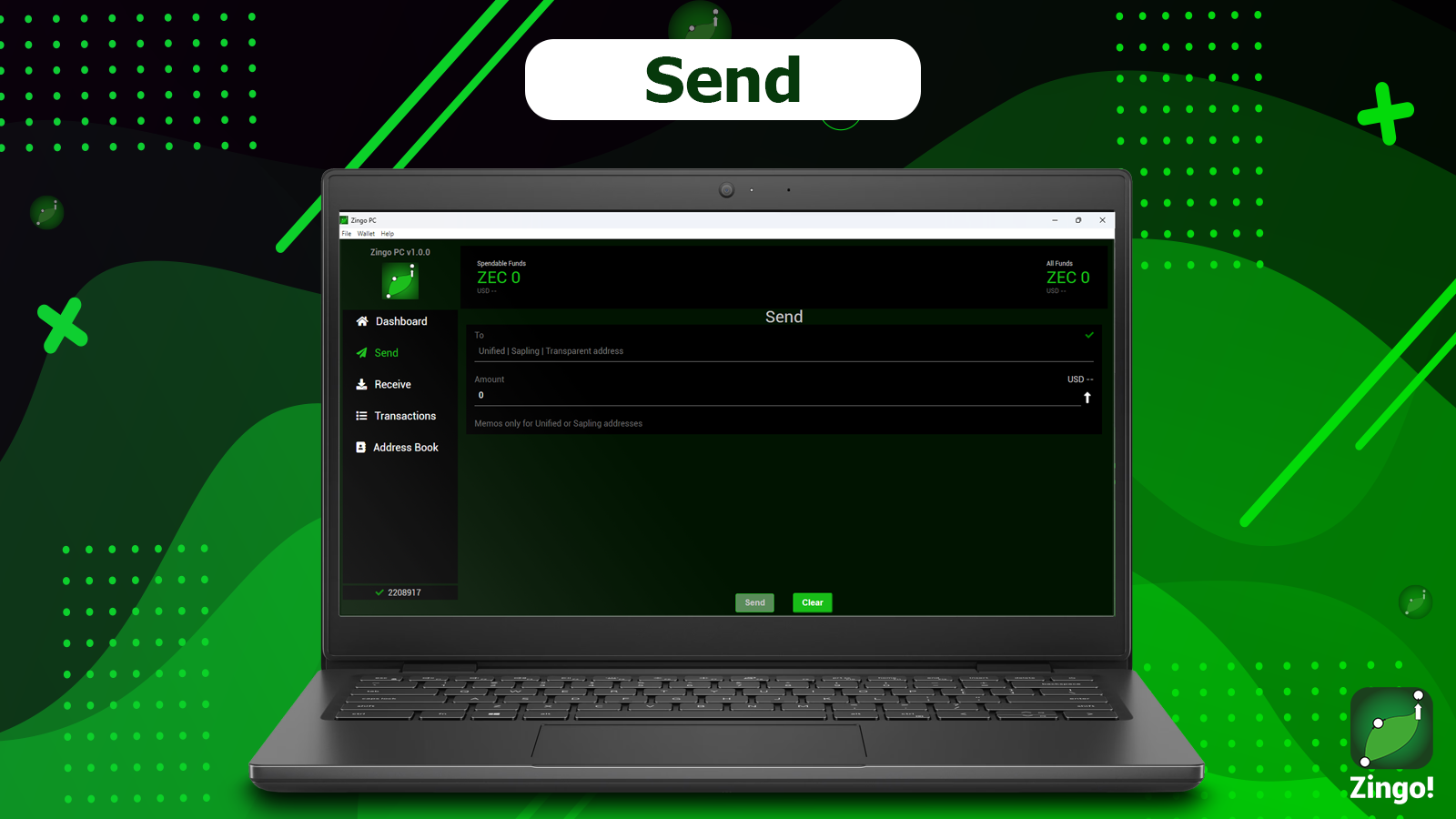
Send
Send encrypted ZECs and memos by filling in the necessary data to perform the transaction, such as the address (U - Z - T), the amount and the text to send in an encrypted memo if you use unified addresses or z-addresses.
Receive
From this tab you can view your addresses, copy them and share them to receive ZECs, we also show you the QR code of each address for quick scanning.
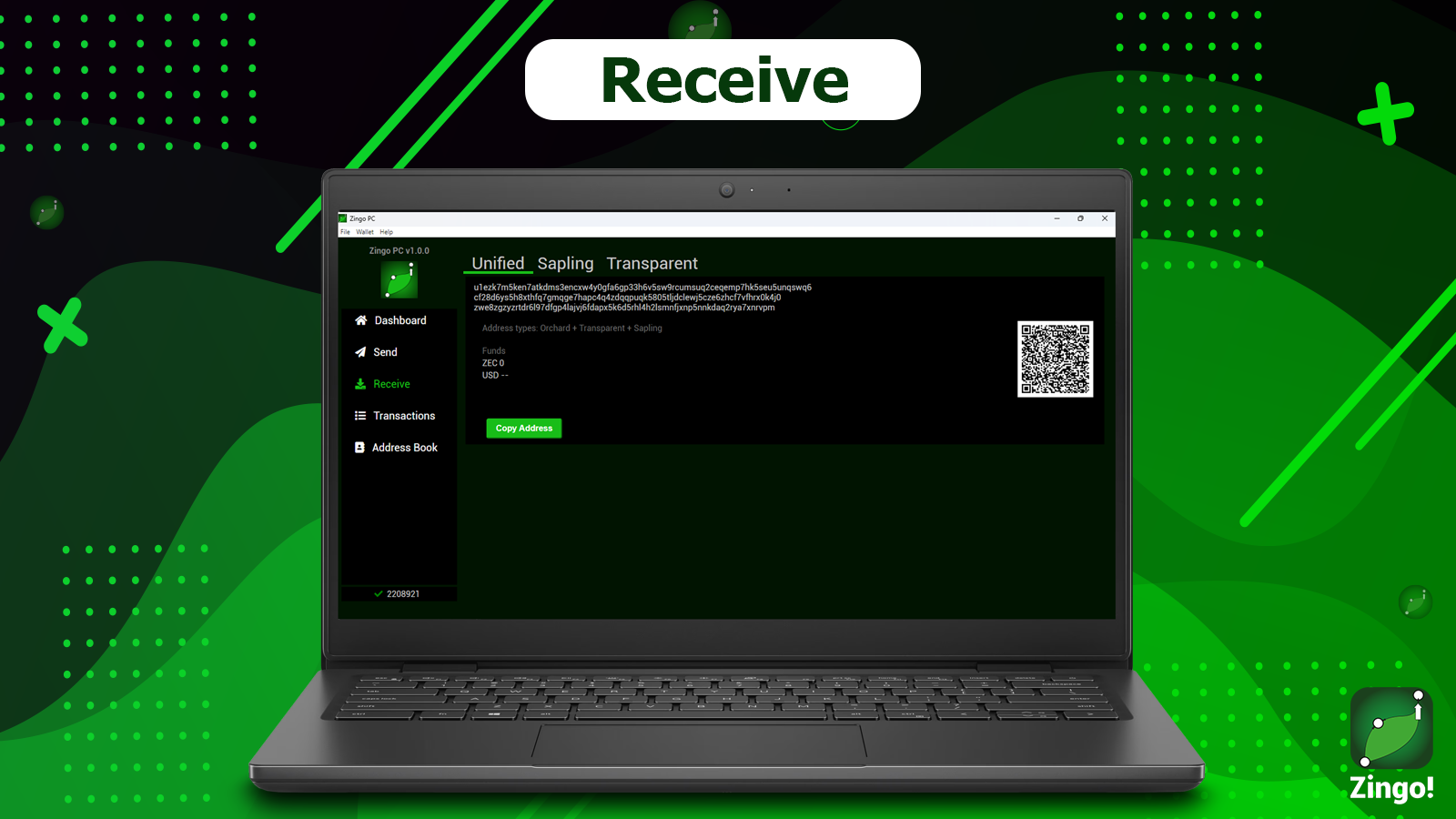
Other options are View on Explorer and Shield or Promote balance to Orchard if you have funds in the Transparent or Sapling pool.
Transactions
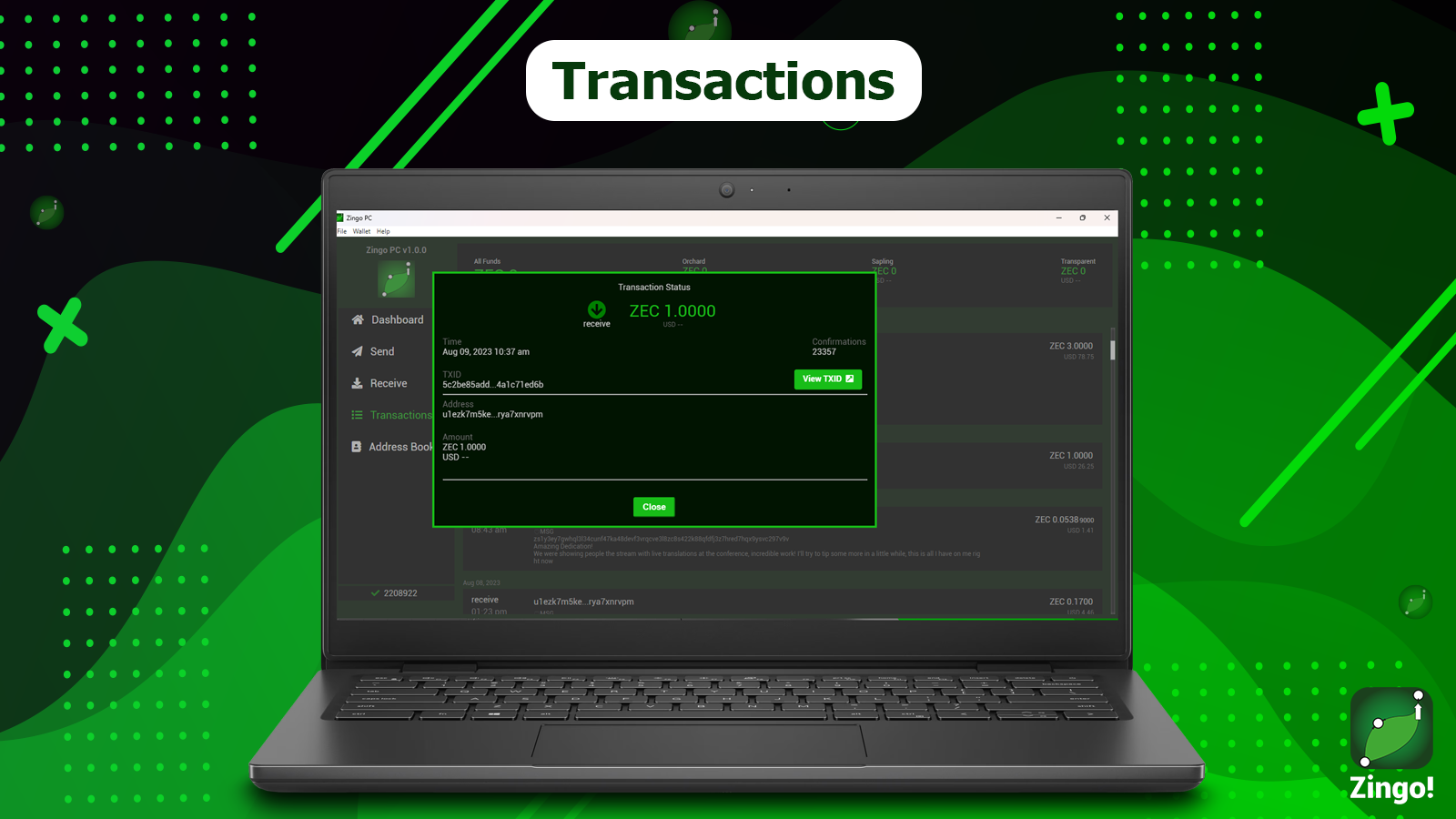
Here you can get information about the history of all sent and received transactions, view the details of each transaction, view the transaction from the Block Explorer, and reply to the transaction if the transaction allows it.
Address Book
Create a list of contacts with a unified address and a personalized label to each of them.
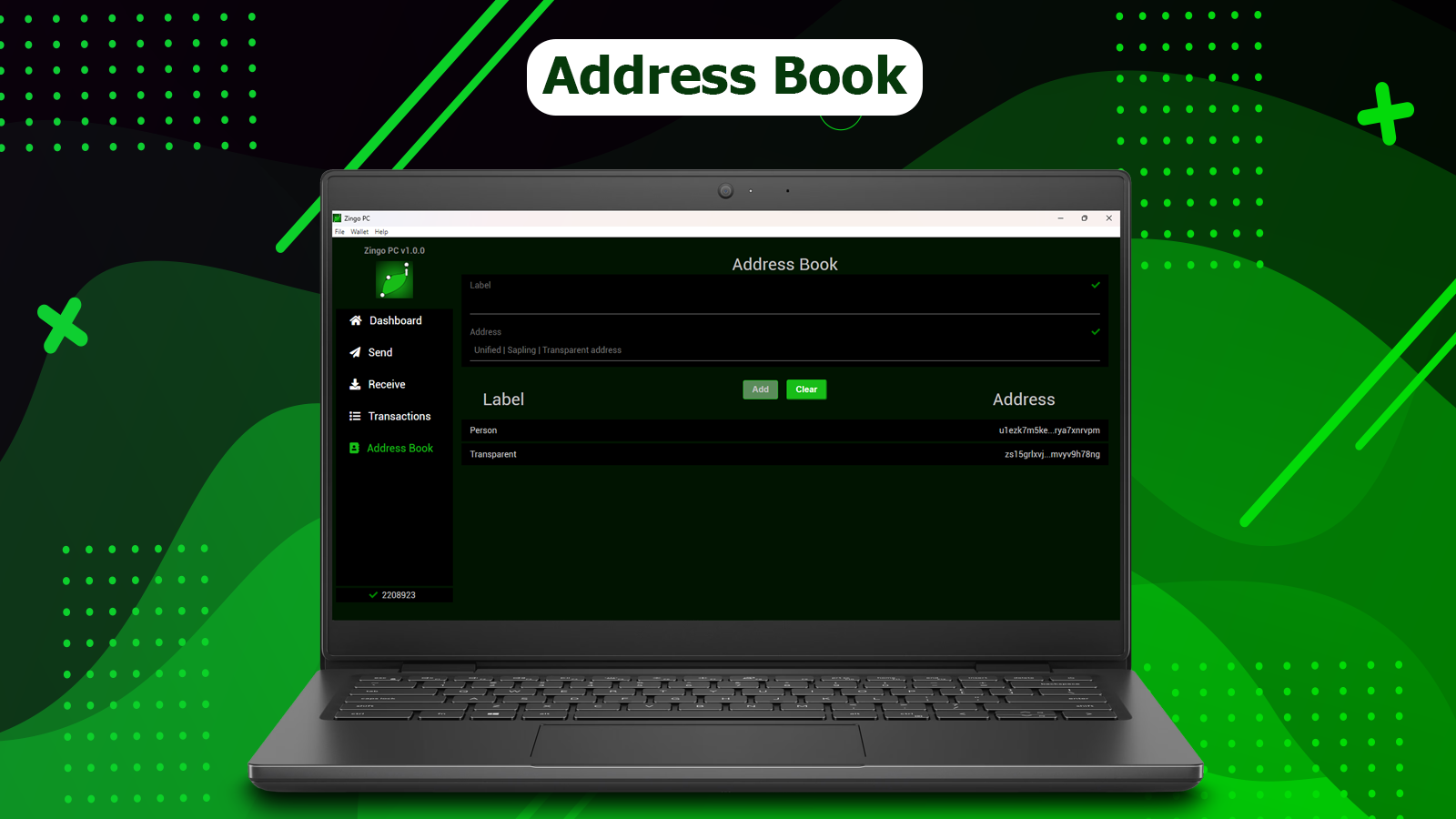
The Address Book allows you to add to a list the addresses with which you frequently make transactions in the ZEC, the shop that sells cookies, chocolates, your favorite designer and anyone who accepts Zcash - PayWithZcash.
Other options
Switching servers and networks
We have previously written an article on how to change servers on Zingo Mobile and on Zingo PC you can do it from the screen that appears when you lose connection to the server on the Change Server button.
You can also make the change from the top options bar by tapping Wallet > Server Info > Switch to Another Server.
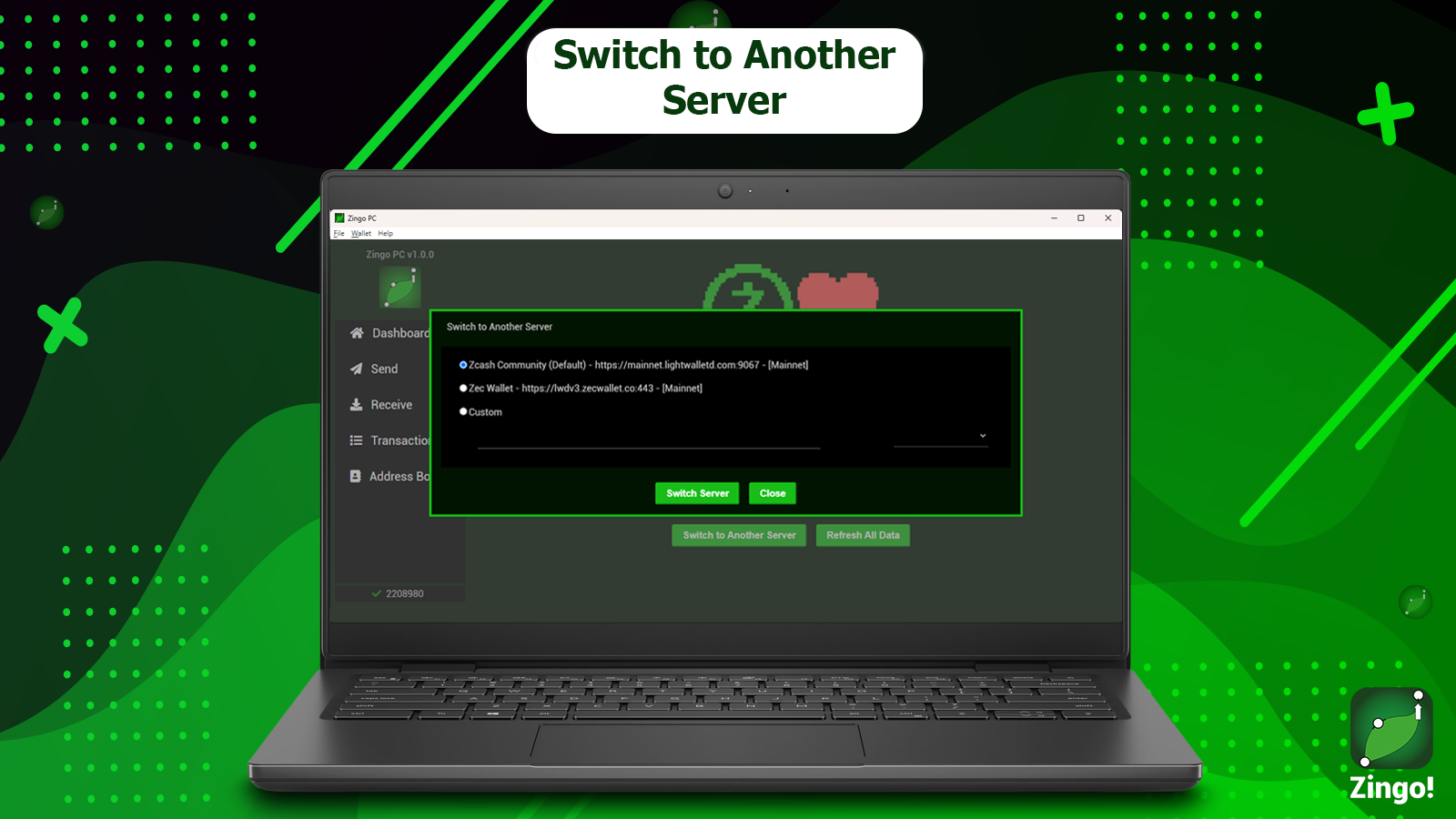
In our desktop client, we have also added the option to change the network from Mainnet to Testnet or Regtest.
Once you are in the change server modal, enter the server URI and select the network that the server you are configuring connects to.
Payment URIs
Payment URIs are widely used in the crypto ecosystem to make payments through a type of link or QR codes, they contain information such as the recipient's address, the amount to send, encrypted memo, among others.
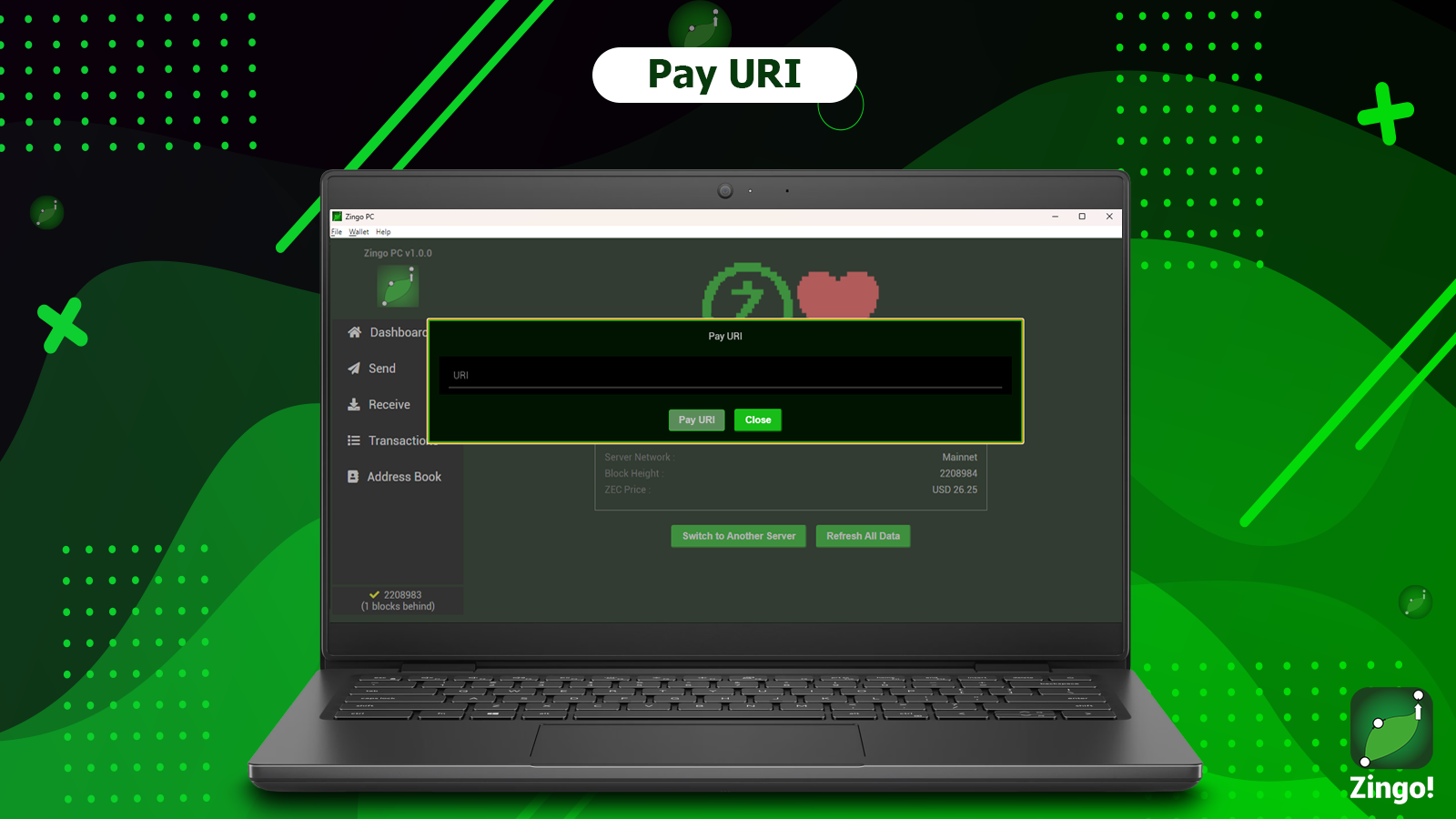
Tap on File above in the options bar and then on Pay URI, a modal will open where you must enter the payment URI, confirm and so all the information is automatically completed to send the transaction.
Seed of the wallet
This is a very important option, although Zingo PC shows you the wallet seed when you create it, from the top options bar you can access the seed phrase to copy and save it securely.
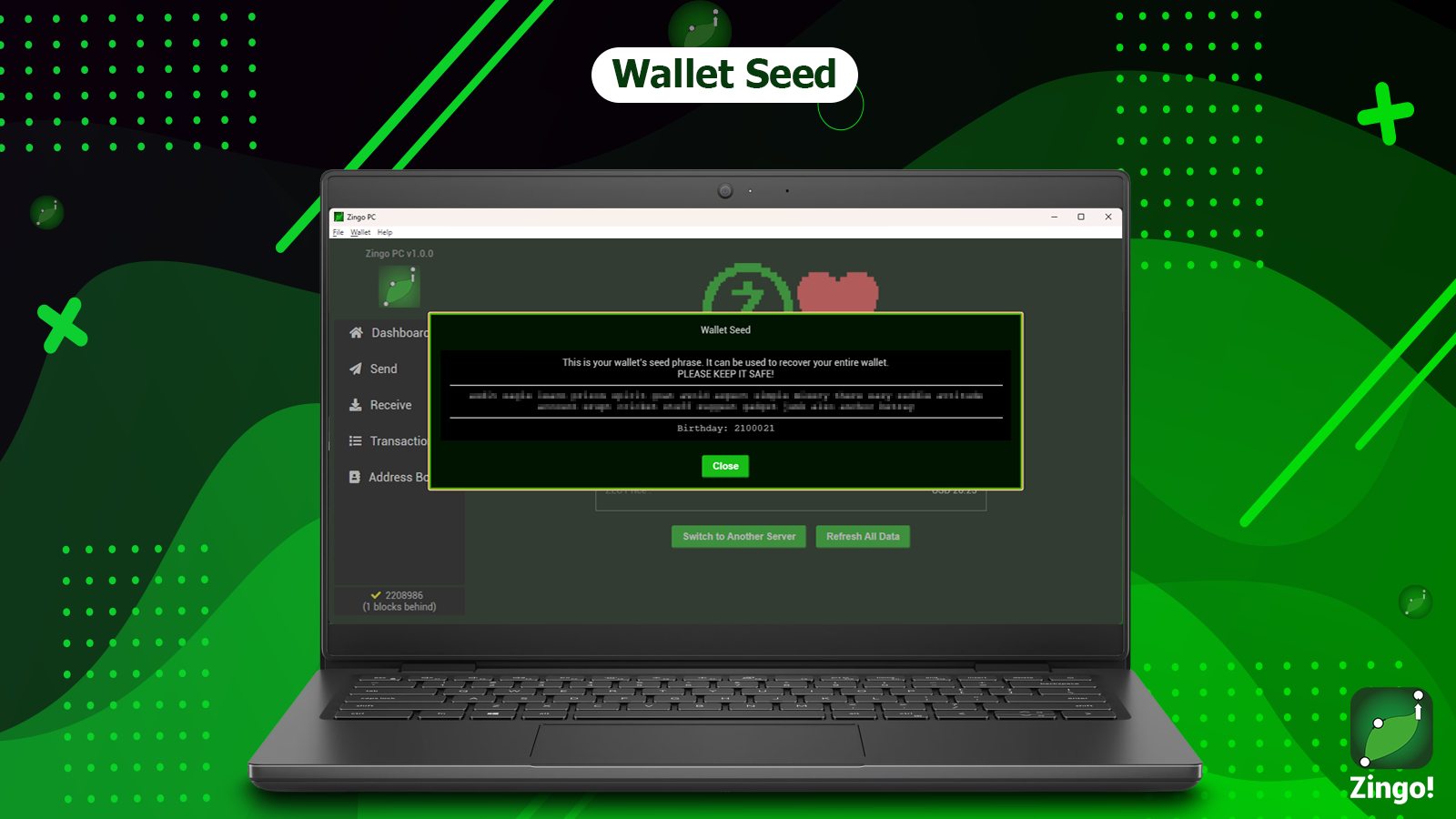
Tap Wallet and then Wallet seed to see the phrase that will allow you to retrieve your wallet on another device.
Save your seed phrase and do not share it with anyone, this phrase gives access to your wallet, whoever has it will be able to spend your money.
So far a little bit of Zingo PC, a first version for all those users who like to use their wallets from desktop devices.
Download Zingo PC for Windows, Linux and MacOS from the repository on GitHub. Soon we will add more features to this client, stay tuned, we are already working on the next update.
Install Zingo!
Zingo-PC
GitHub
Google Play
Apple App Store

