
Free2Z is a platform that goes beyond traditional options, providing a space where people can develop their ideas, collaborate with each other and get rewards for their efforts.
It allows users to make financial contributions to specific projects or in general, encouraging mutual support and collaboration. In addition to that, it offers tools for the creation and customization of your articles such as Markdown and Artificial Intelligence applications to create images or search for text.
What sets Free2Z apart? Its focus on the community. Here you are not just another number, but part of a digital family where everyone collaborates, supports each other and grows together.
Register and Login 🔑
To get started on Free2Z, visit the home page, click on the 'Login' icon in the top right corner and access the registration panel where you can create a new account or start with an existing one. The process is quick and easy!
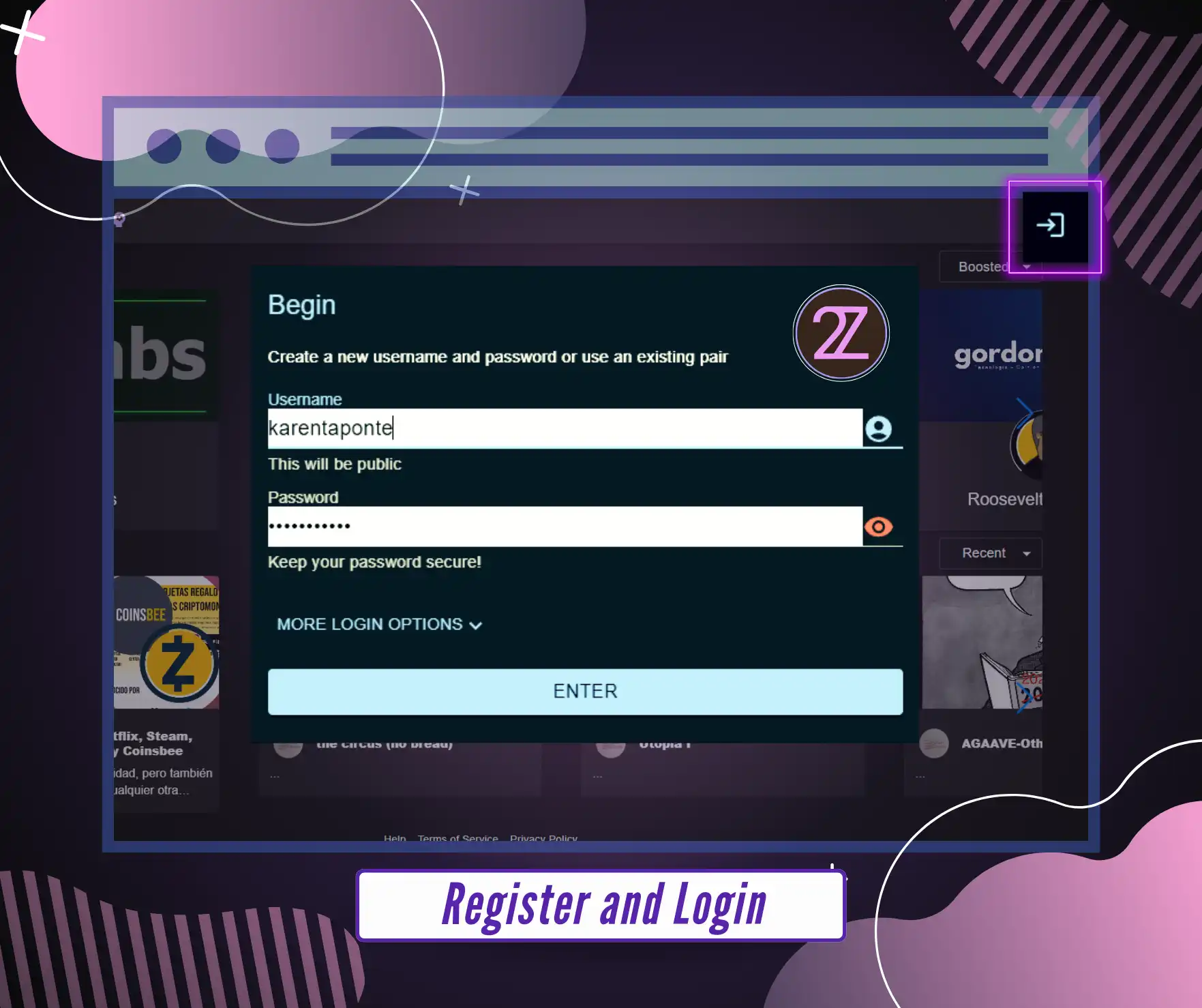
👀Complete the CAPTCHA to prove that you are not a bot🤖. This is a security measure to prevent SPAM and flood🛡️ attack.
Set Recovery Mail 📧
After registering, click on your avatar in the upper right corner. Then, go to "Profile" and select "Linked Accounts". Finally, register your password recovery email.
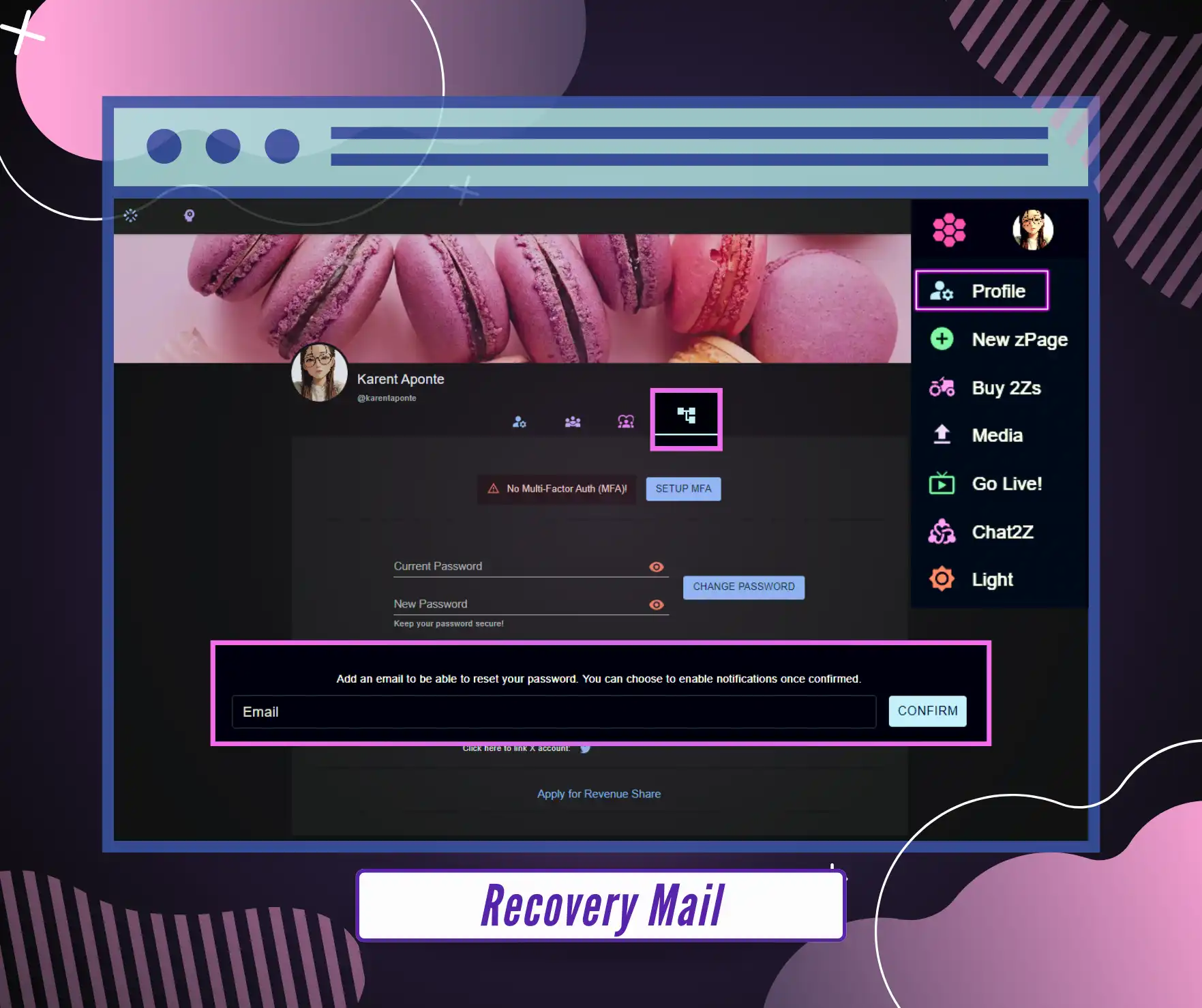
⚠️Without an e-mail address you will NOT be able to reset your password if you forget it.
Link Twitter Account (𝕏)
You can efficiently login or register to the platform with your Twitter (X) account. By doing so, you avoid the process of having to establish new credentials. With the user's consent, you can access certain information from their Twitter profile, such as full name and username.
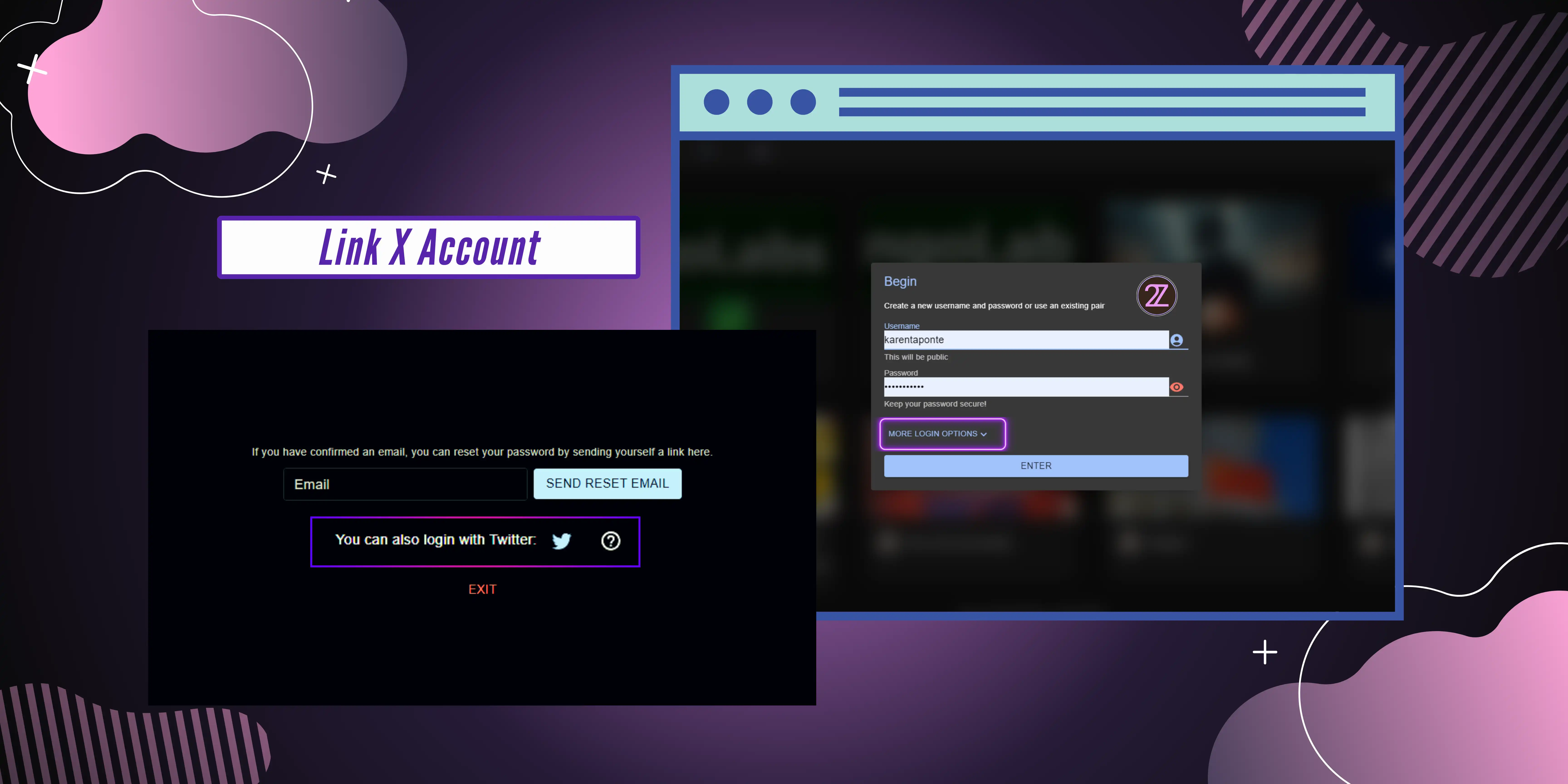
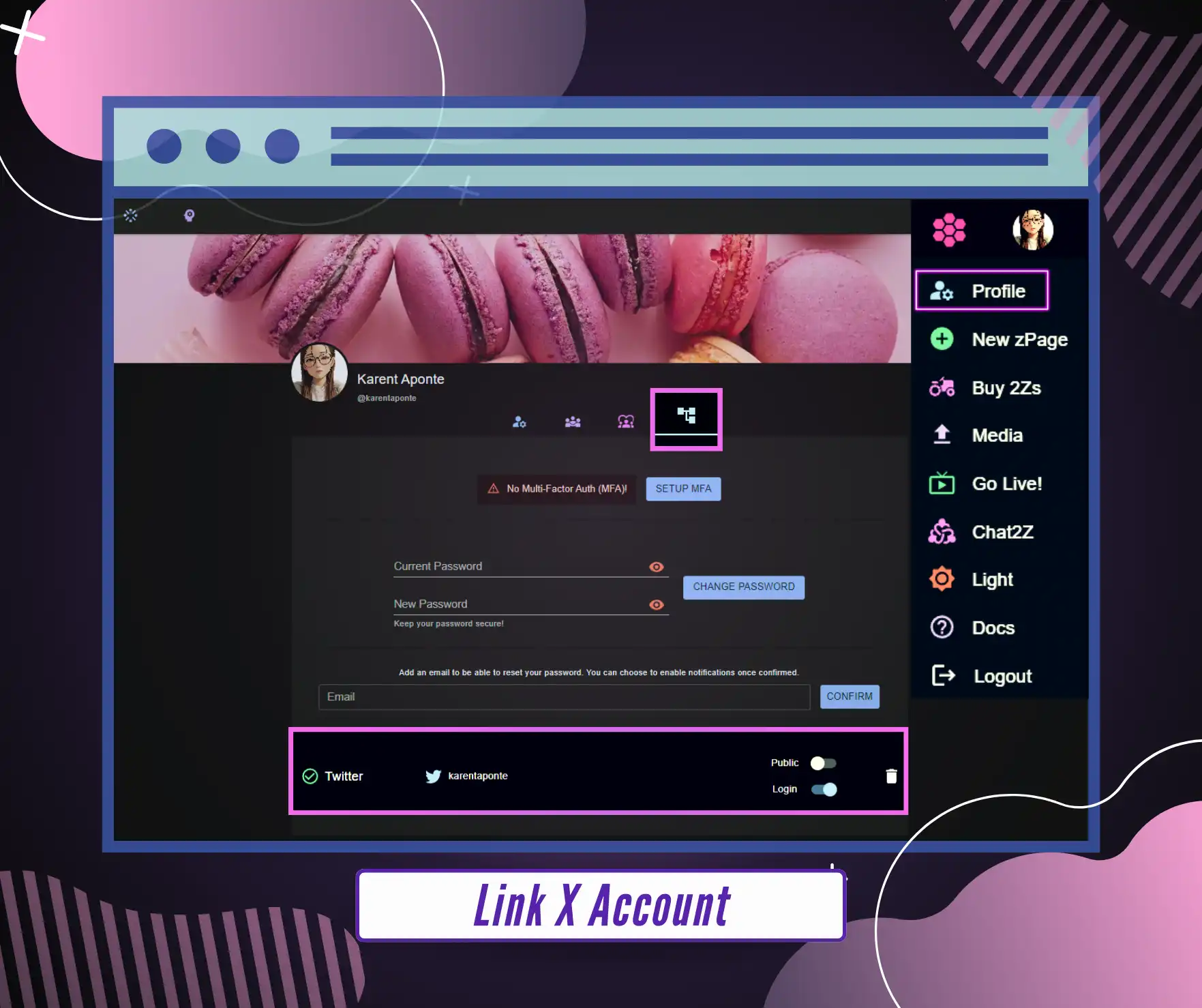
If you wish to associate an existing Free2Z account with your Twitter account, first log in to your Free2Z account. Then go to 'Profile' and select 'Linked Accounts'. When linking you will find the 'Public' and 'Login' options.
- Public: A bot mentions the account on twitter (X)
- Login: Log in with the twitter account (X)
Activate Multi-factor Auth 🔐
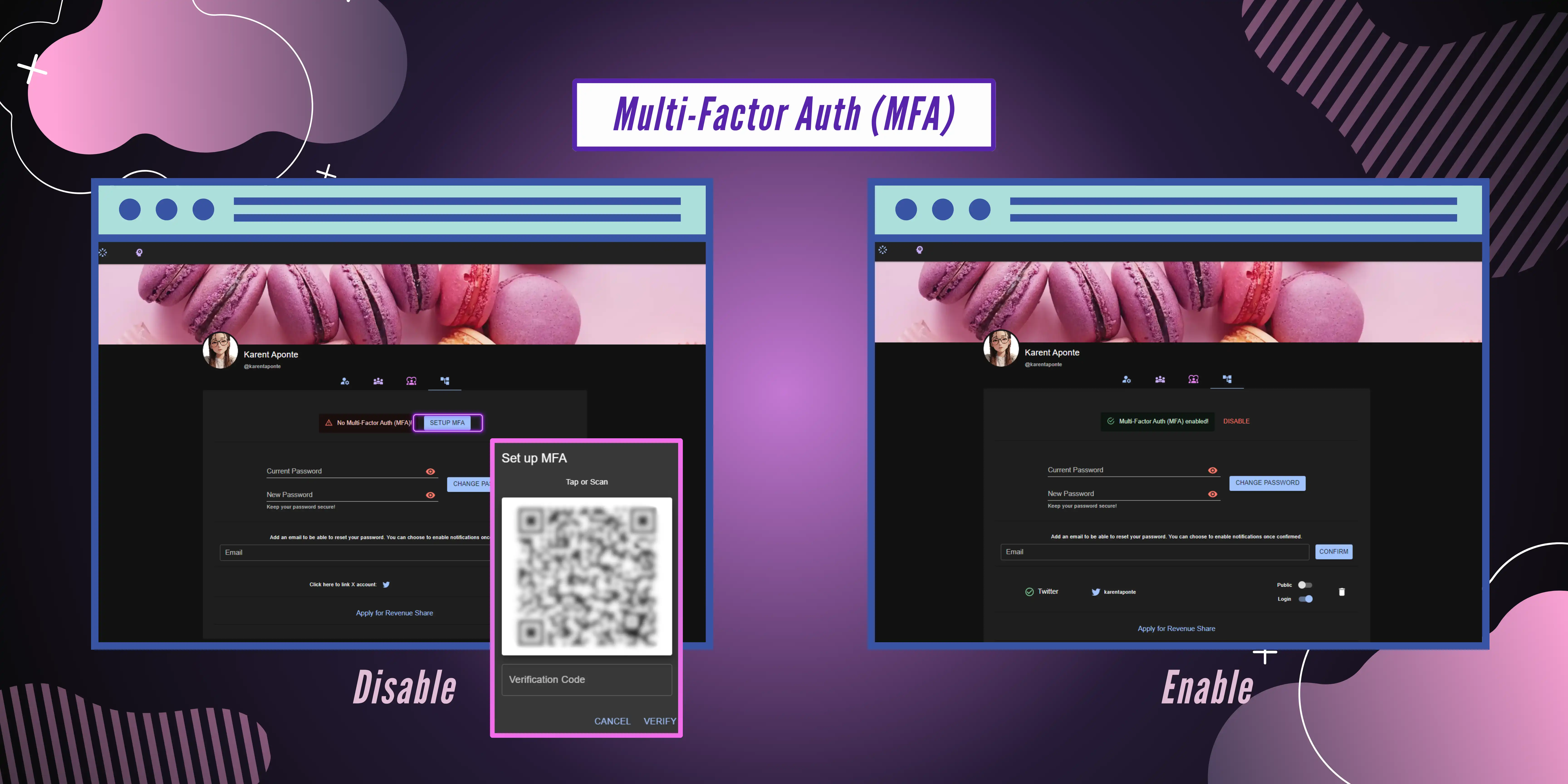
Activate two-step verification (MFA) and protect your data from unauthorized access.
- Login to your profile
- In the "Linked accounts" tab, tap "Set up MFA".
- Choose to scan the QR code or copy it.
- Open your favorite authentication app and paste the code.
- Enter the generated code in Free2Z and you're done!
Every time you log in, you will have to enter the unique code generated by your authentication app.
Change and Reset password 🔒
Free2Z offers you two new options to give you more control over your account:
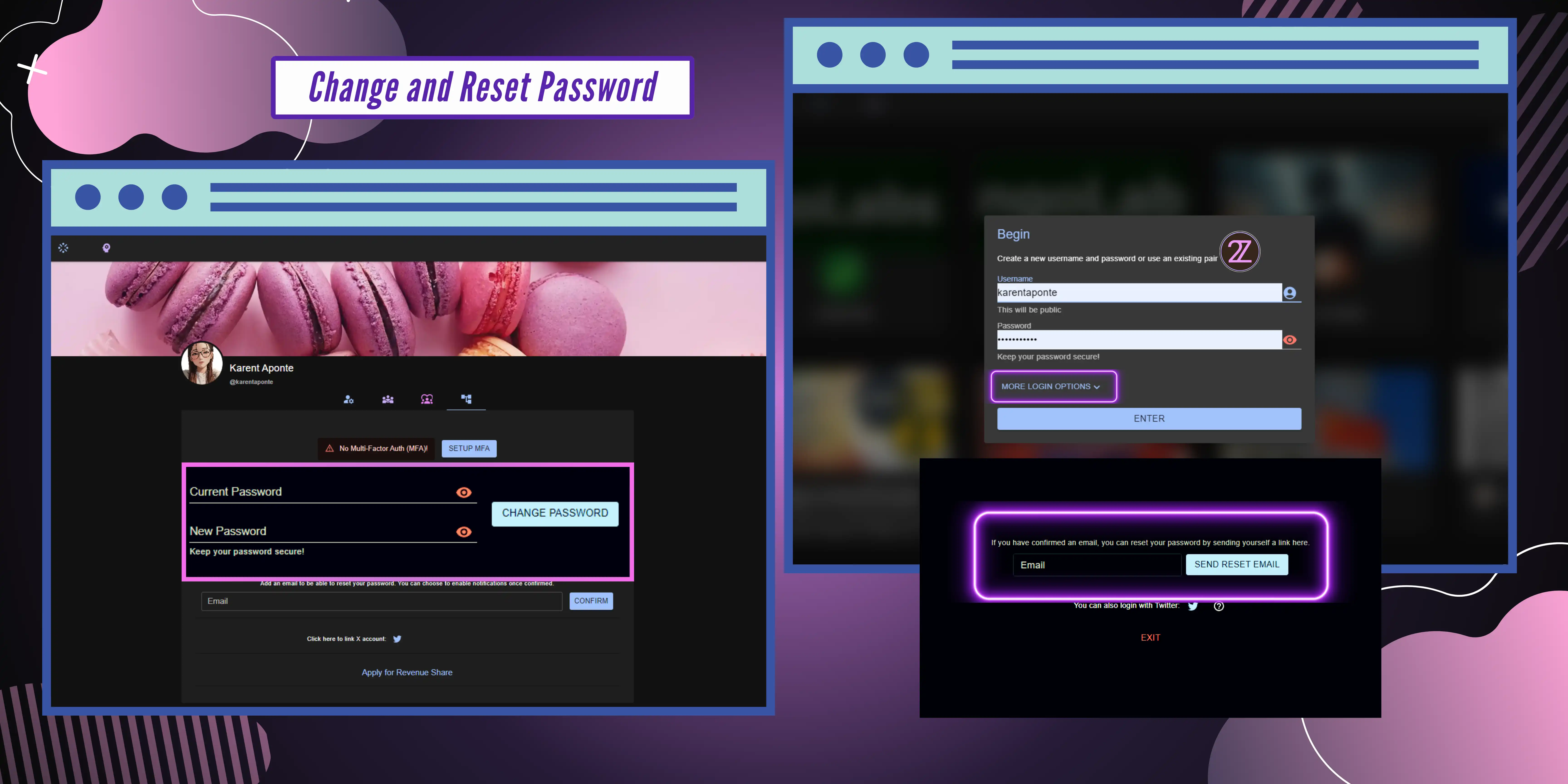
Change Password: Login to the "Linked Accounts" tab, enter your current password, the new password you want to use and press "Change Password". That's it!
Password recovery: Go to the login panel, tap the "🔽" icon, enter your recovery email and follow the instructions.