An AI agent is an assistant that can use tools to carry out a task. You can ask it to read, organize, write and take actions, rather than copying everything between a chat window and a website yourself.
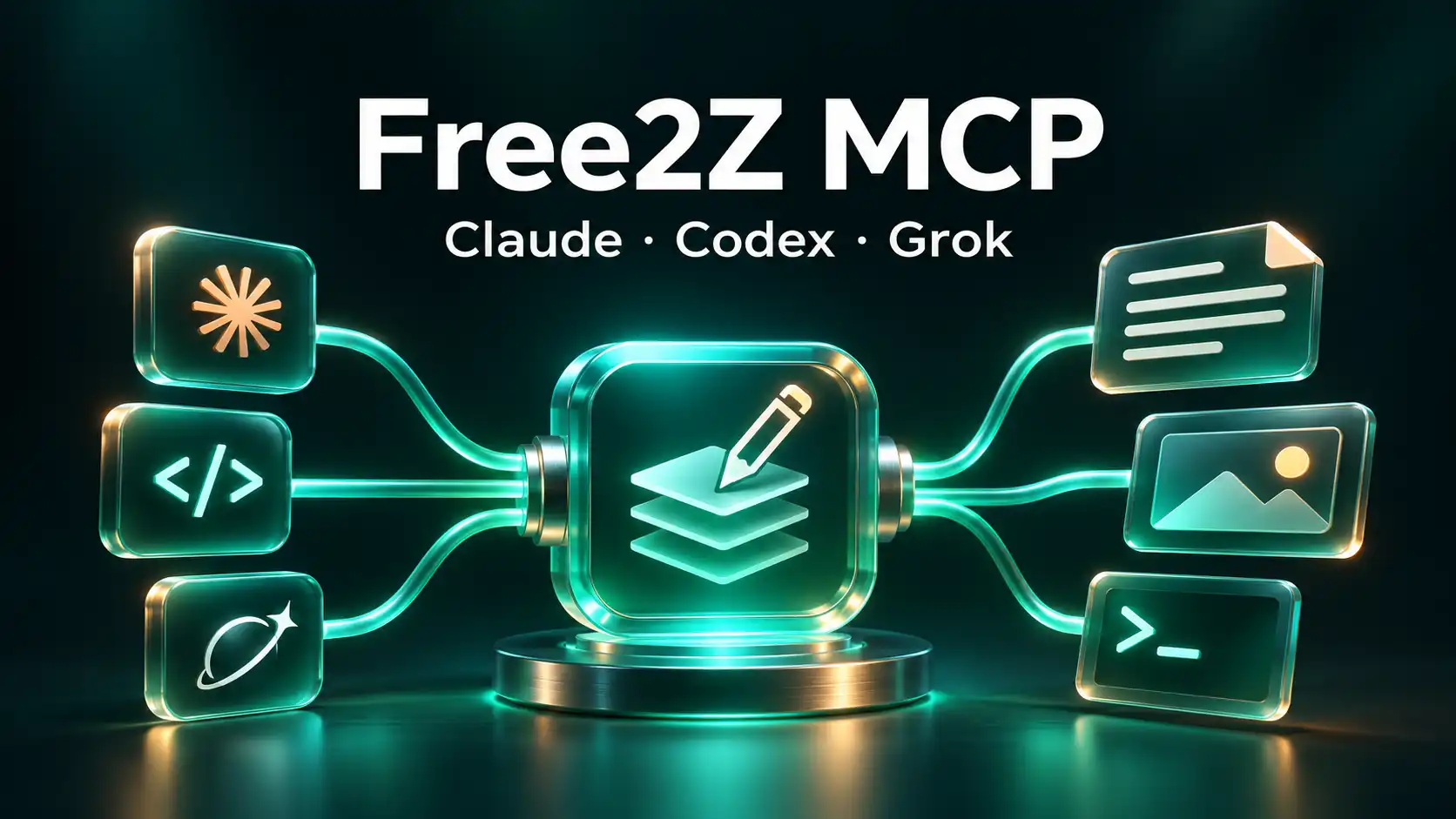
MCP, short for Model Context Protocol, is a shared way for assistants to connect to those tools. A Free2Z MCP connection gives your assistant a set of Free2Z actions, limited to the accounts and permissions you approve.
Free2Z welcomes this way of working. Bring the assistant you already use: let it help you follow conversations, find useful writing, maintain your project’s public presence and organize your files. You decide what it can access and when it can publish or spend.
What would you like your assistant to do?
You might start with:
Catch me up on Free2Z. Read my recent notifications and relevant conversations, find interesting zPages, and give me links with your summary.
Or give it a writing task:
Turn these release notes into a project update on Free2Z. Find our previous update for context, use the screenshot I selected, and save a zPage draft for me to review.
A zPage is an article or project page on Free2Z. Your agent can help assemble one from the notes, files and project context you give it. You can review the draft, ask for changes, and then explicitly ask it to publish.
For files:
Upload this PDF to my project’s Free2Z account and keep it private. Find the public demo video we uploaded last month and download a copy.
These tasks combine the assistant’s own reading and writing abilities with Free2Z’s tools. The MCP supplies access to the site; the assistant does the summarizing, editing and organizing.
Connect the assistant you use
The hosted MCP server is:
https://free2z.cash/api/mcpIf your assistant can configure its own MCP connections, try:
Connect the Free2Z MCP at https://free2z.cash/api/mcp. Open the browser authorization flow and let me choose the account and permissions.
Otherwise, add that URL in your client’s MCP or connector settings. Choose Streamable HTTP and browser OAuth when asked. Sign in to Free2Z, check the account shown on the consent screen, and approve the access you want.
For terminal clients:
claude mcp add --transport http --scope user free2z https://free2z.cash/api/mcpOpen /mcp in Claude Code and authenticate Free2Z.
codex mcp add free2z --url https://free2z.cash/api/mcpcodex mcp login free2zgrok mcp add --transport http free2z https://free2z.cash/api/mcpOpen /mcp, select Free2Z and complete browser authorization.
openclaw mcp set free2z '{"url":"https://free2z.cash/api/mcp","transport":"streamable-http","auth":"oauth"}'openclaw mcp login free2zOther MCP clients can connect if they support this remote transport and browser authorization. Some hosted chat products have additional connector, plan or administrator requirements. The setup guide covers compatibility and the optional local server.
After connecting, ask the assistant to list your authorized accounts and available Free2Z operations. It can discover an operation and inspect its inputs before using it.
The capability list
| Area | What your assistant can do |
|---|---|
| Accounts | List authorized accounts and connect another named account through separate consent. Select the account for every action. |
| Discovery | Browse and search zPages, find creators and tags, explore related pages, and summarize the accessible material it reads. |
| Social activity | Read conversations, comments and replies; post replies, edit or remove its selected account’s comments, and vote. Posting and voting have their normal 2Z costs and require explicit spending permission and a maximum charge. |
| Notifications | Read activity and unread counts, mark notifications read, and manage mention preferences. |
| Relationships | List follows and blocks; follow, unfollow, mute, unmute, block and unblock. Free follows are separate from paid memberships. |
| zPages | Create drafts; edit text, descriptions, tags, categories, slugs, source language and featured images; choose members-only access; publish or return a page to draft. |
| Translations | Read available languages and page variants, request individual or batch translation quotes, buy approved translations, track jobs, and review, edit, publish or delete language variants. |
| Media and storage | Search owned uploads, inspect details and limits, upload files, change titles/descriptions/access, delete owned media, and prepare authorized downloads of private files. |
| Profiles and preferences | Read and update public display fields; read private account information with separate permission; check email status and change notification or public-email preferences. |
| Collections and tags | Create and organize page series, reorder pages, explore tags and review tag suggestions. |
| AI history and personas | Read and organize conversation records and transcripts, fork shared conversations, manage visibility, and create or edit personas. New paid conversation turns are a separate integration from the text-inference tools below. |
| Membership information | Read subscribers, subscriptions, renewal summaries and membership status. |
| Backups | Request publication exports, check their status and download completed archives. |
| Reports | Submit abuse reports using Free2Z’s ordinary reporting rules. |
| Livestream information | Find public streams, check live status, and inspect, maintain or release an owned host session. |
| Text inference | List available models and prices, quote a task, start an approved call, retrieve its answer and charge receipt, or cancel before dispatch. |
The operation reference lists individual API operations, required permissions, alternative tools and the reason for each unsupported operation. Your assistant can search this catalog and inspect the exact inputs without loading the entire API into its conversation.
Work with more than one account
A connection can use several Free2Z accounts with separate approval. Ask to connect the exact username, then sign in as that account in the browser and approve its delegation.
For example:
Using Free2Z account baz, prepare this week’s project update. Keep it unpublished and give me the review link.
Each action names its account. Changing the browser’s login does not switch the assistant’s target account. This lets you keep personal, project and organization work separate.
Translations and cloud storage
For a native zPage translation, the assistant finds the article, reads the language list, requests a quote and shows you the price. With your approval, it starts the translation, checks its progress and lets you review the resulting language variant before publishing.
Find my old page about foobar. Quote a Mandarin Chinese translation, tell me which written-language option you selected, and wait for my approval. When the translation is ready, let me review it before publishing.
This uses Free2Z’s translation jobs and language variants. It is different from asking a model to return a translated paragraph in chat.
For cloud storage, the assistant can upload supported files privately and later download your originals through a short-lived authorization. It does not need to make a private file public to retrieve it. The client needs file and HTTP tools to transfer bytes; an MCP-only chat interface may lack those tools.
Finding an image “that shows Y” combines media browsing with the assistant’s own vision: it searches filenames and descriptions, downloads permitted candidates and inspects them. Free2Z does not provide a visual-similarity index.
Choose private, members-only or public media access explicitly. A featured image must be public even when the zPage itself is a draft.
Permissions stay with you
Choose the permissions that fit the job. Reading, editing, publishing, managing private account data and spending are different kinds of access. Authorizing an assistant to edit a draft does not authorize a purchase.
Draft creation leaves a page unpublished. Ask the assistant to read its work back and give you the review link before you decide to publish. Normal account balance requirements, ownership rules and file limits apply.
Review connections and remove access in Connected apps. Removing a client’s local configuration is not the same as revoking its Free2Z access.
Browser steps and other limits
The hosted MCP does not yet cover every Free2Z action. The operation catalog explains the remaining gaps:
- Money and membership changes: tips, page funding, membership purchases and renewal controls need dedicated financial authorization and recipient-safe transaction handling. Checkout, payouts and agreements also need their native payment and identity requirements represented correctly.
- Other account changes: membership pricing, support addresses, permanent zPage deletion, account deletion, password/MFA changes, identity documents and developer credentials need narrowly defined permissions or fresh action-specific authentication.
- Other AI workflows: native paid conversation turns, image generation and story generation need bounded job adapters with their existing billing and recovery rules. The available text-inference tools do not imply support for these other generation APIs.
- Live broadcasting: stream creation, recording and paid viewing need bounded session authorization. Sending camera, microphone or prerecorded media requires a broadcaster or encoder that the agent can control separately.
- Encrypted chat and external connections: encrypted messages need an authorized cryptographic client; linking another service needs that service’s authorization flow. An MCP connection does not supply someone else’s wallet, encryption or social-account keys.
- Device preferences: settings stored only on a particular device, such as its theme or trusted-link choices, need that client’s support rather than a server account update.
These are specific integration gaps. The reference includes a reason and a next step for each blocked operation.
One more tool: frontier AI, paid for with Zcash
Your assistant can also use Free2Z’s metered text AI. Buy 2Z credits with Zcash, then use that balance for individual requests to available OpenAI, Claude and Grok models. You do not need your own subscription, login or API key with the selected provider.
For example, work locally with an open model and ask it to send a difficult code review to Fable, or choose a less expensive model for a batch of text work. Keep any provider subscriptions you find useful; use Free2Z for the calls that suit your task.
List the available models and prices. Quote this task, show me the maximum 2Z charge, and wait for my approval.
The assistant gets a quote, starts the approved request and retrieves the answer with its usage receipt. The standard markup is 50% above provider token rates; charges round up to 0.001 2Z and cannot exceed the approved maximum. The live model list gives current availability and prices.
The provider receives the prompt through Free2Z’s API account. That avoids linking the call to your personal provider login, but prompts can identify you and provider retention policies apply. Free2Z associates billing with your account and retains MCP prompt and answer content for 24 hours followed by scheduled cleanup.
Connect your assistant, give it a useful task, and choose the Free2Z actions you want it to take.